Blog
You point your phone at a business card. Three seconds later, the name, title, email, and phone number appear on your screen, sorted into the right fields. But how does a business card scanner app actually work under the hood?
Most people assume the app just "reads the text." That is only step one. Without AI parsing on top of basic text recognition, your scanner would dump unstructured characters with no idea which string is a name and which is a zip code.
This guide breaks down the full pipeline in plain language so you can understand what you are paying for when you choose an AI business card scanner.
TL;DR
AI business card scanning is a five-step pipeline: image preprocessing, OCR, NLP parsing, field mapping, and CRM handoff.
OCR alone gets you raw text. It cannot tell a name from a job title.
NLP and machine learning assign meaning to each piece of text and place it in the right field.
Business card scanner accuracy depends on all five steps working together; a weak link at any stage means bad data in your CRM.
Pair your scanner with a review and de-duplication step to catch the errors AI misses.
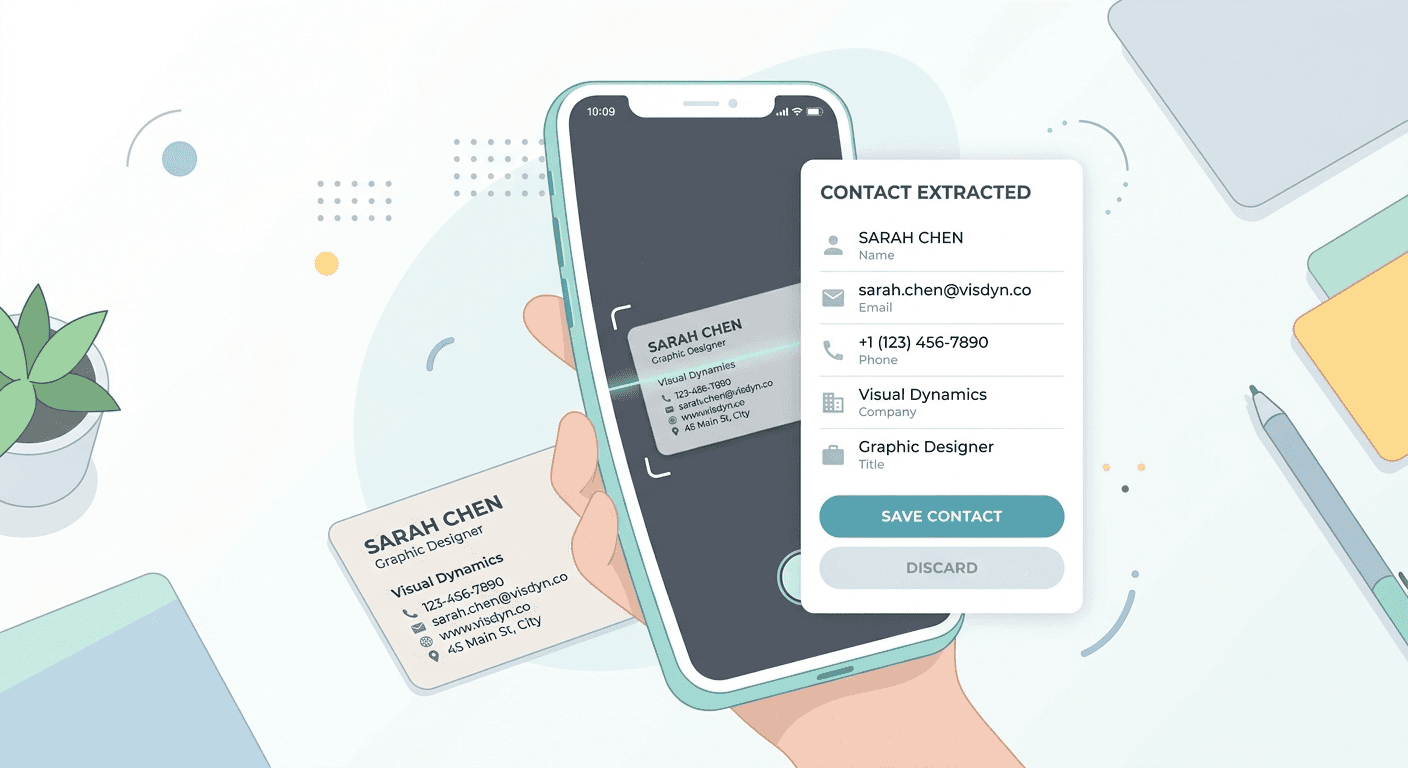
See how a business card scanner app works, step by step, from OCR to NLP parsing to CRM handoff. A plain-English guide for business owners.
Before your phone reads a single character, the app has already done a surprising amount of work on the photo itself.
When you point your camera at a business card, the software detects the card's edges, crops out the background, and straightens the image if you held the phone at an angle. This geometric correction (sometimes called a perspective transform) turns a tilted snapshot into a clean, flat rectangle.
Next comes visual cleanup. The app adjusts contrast and brightness, sharpens blurry edges, and reduces noise from grainy photos. If you are at a conference booth with harsh overhead lighting or a glossy card throwing glare, preprocessing handles those real-world conditions before text recognition begins.
Why this matters for you: Business card scanner accuracy drops sharply on skewed or poorly lit images. Think of preprocessing as the scanner tidying up the photo before it tries to read anything, like turning on a desk lamp and flattening a wrinkled page. Skip this step, and every downstream result gets worse.
For high-volume scenarios (clearing a stack of ≈150 cards after a trade show, for example), batch scanning tools apply these corrections to every card in sequence, so you do not have to worry about getting each photo perfect.
Step 2: Business Card Scanner OCR, Turning Images into Raw Text
Optical Character Recognition (OCR) is the layer most people think of when they hear "business card scanner." Its job is straightforward: identify regions of text in the image, recognize individual characters, and output a raw text string.
Modern OCR engines (Tesseract, Google Vision API, ABBYY, among others) are remarkably good at the character-level task. Phone numbers, email addresses, and website URLs with their predictable patterns are usually captured with high accuracy. Top scanner apps report ≈96 to 99% character-level accuracy in standard conditions.
But character accuracy is not the same as field accuracy. Here is where OCR limitations on business cards show up most often:
Names versus job titles. "Priya Sharma" looks the same as "Chief Revenue Officer" to an OCR engine. Both are just strings of letters.
Company names versus addresses. A line reading "Park Avenue Technologies" could be a company or a street.
Decorative text. Taglines, mottos, and design elements get pulled in alongside real contact data.
Multilingual cards. A card with Hindi and English text, or Chinese and English, forces the engine to switch recognition models mid-scan.
Stylized layouts. Vertical designs, dark backgrounds, metallic foil, and unusual fonts push error rates higher. Independent reviews suggest ≈15 to 25% of fields can contain errors on heavily stylized cards.
The bottom line: business card scanner OCR is necessary but not sufficient. It gives you the raw ingredients. Turning those ingredients into a usable contact record is the job of the next layer.
This section is the core of how AI business card scanners work and where most free tools fall short.
Imagine OCR hands you this output:
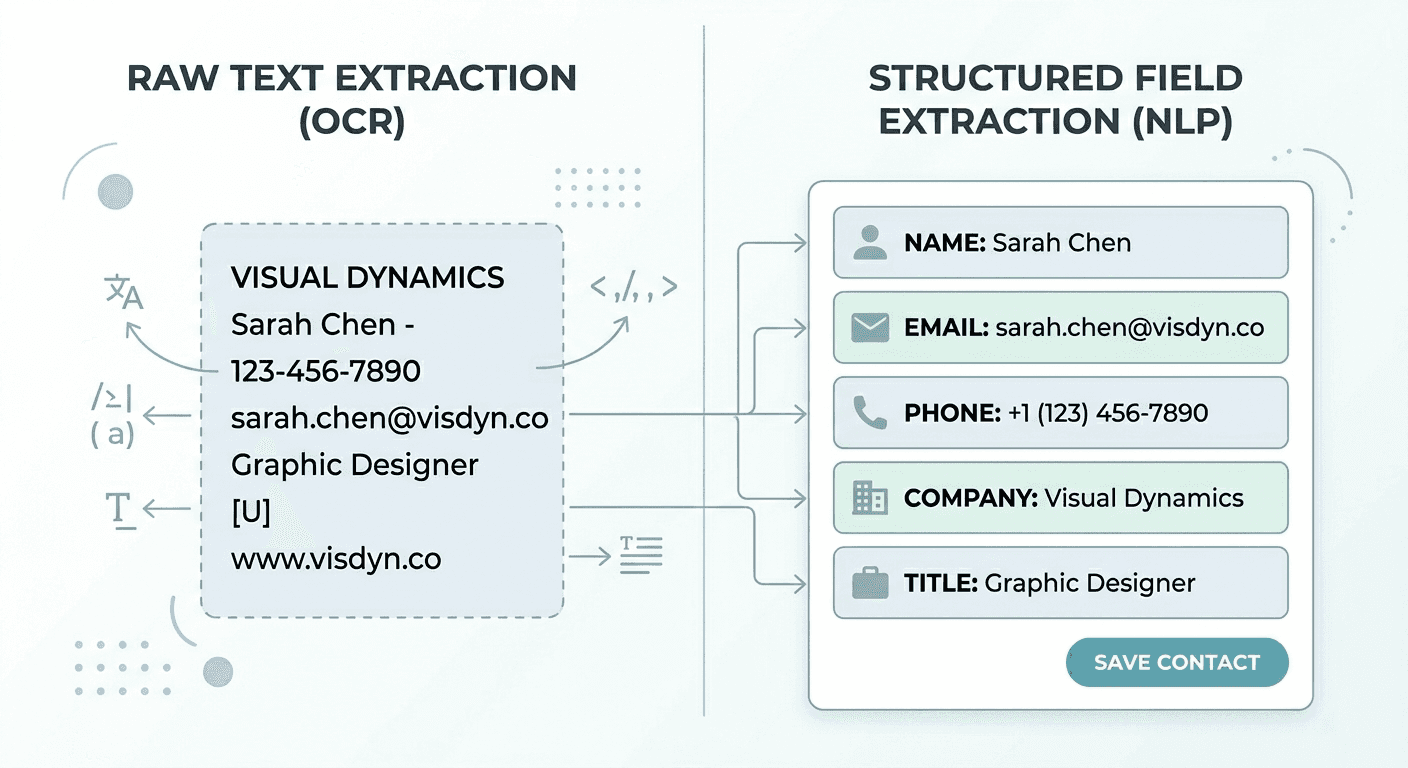
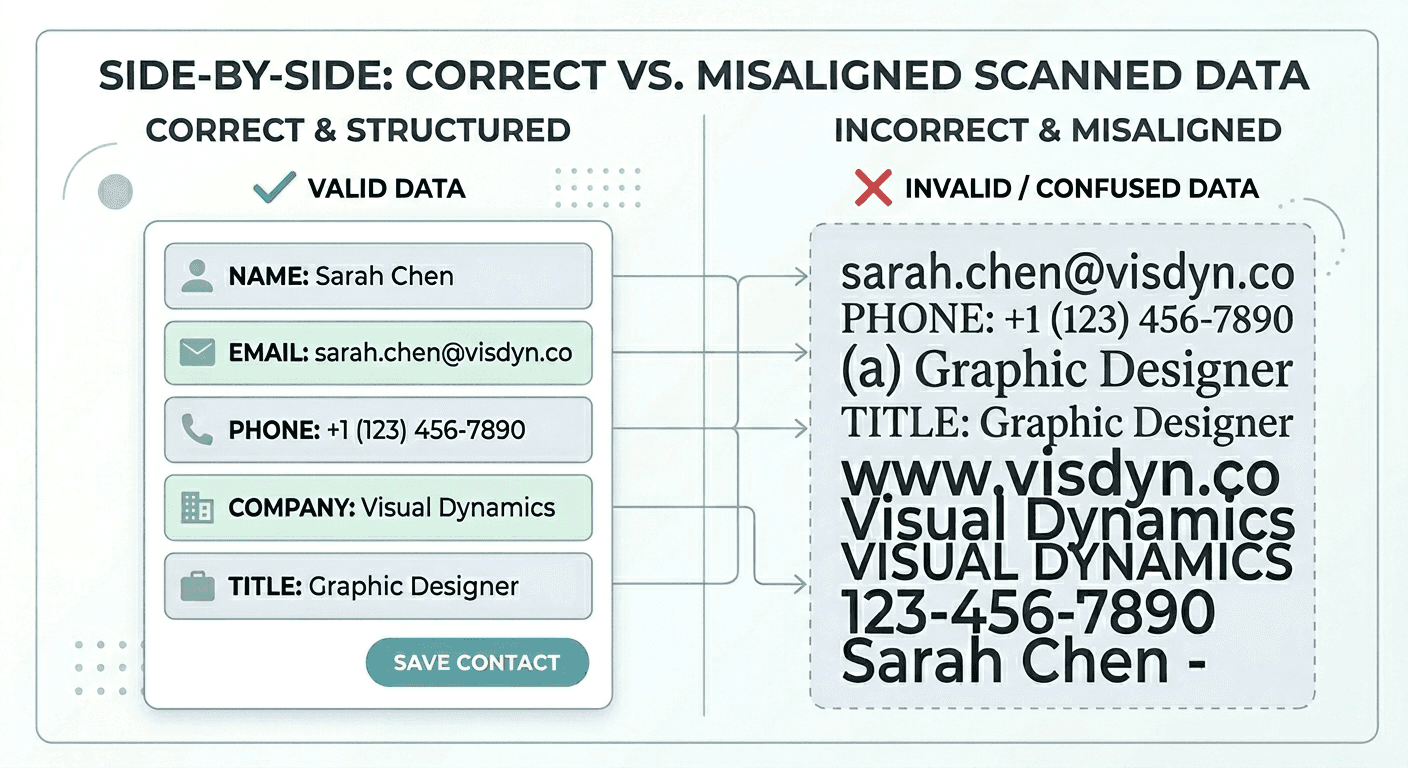
A human reads those seven lines and knows right away which is the name, which is the title, which is the company, and so on. OCR does not. To the engine, every line is just a sequence of characters with no label attached. This is the central OCR limitation on business cards: recognition without understanding.
This is where Natural Language Processing (NLP) steps in.
Named Entity Recognition (NER) scans the text and classifies chunks into categories: PERSON, ORGANIZATION, LOCATION, EMAIL, PHONE. It recognizes "Rahul Mehta" as a person and "BrightPath Solutions Pvt Ltd" as an organization based on linguistic patterns, not just position on the card.
Machine learning models trained on millions of business cards add a second layer of intelligence. They learn layout heuristics: a line appearing above a company name is probably a job title; "+91" precedes an Indian phone number; a second phone number is more likely a mobile than a fax; a line below the company is usually an address.
Confidence scoring is the safety net. Good apps assign a confidence percentage to each parsed field. When confidence is low (say, the model is only 60% sure "James Allen" is a person and not the jewelry brand), the app flags it for human review instead of silently inserting wrong data.
A useful analogy: OCR is like a court stenographer who transcribes everything perfectly but does not understand a word. NLP is the lawyer who reads the transcript and knows what each statement means.
This is exactly why a review and de-duplication step matters even with the best scanner. AI parsing is very good, but it is not perfect. A quick human check catches the edge cases that algorithms miss.
Once NLP has identified and labeled each entity, the app maps parsed data into structured fields: First Name, Last Name, Job Title, Company, Phone (Mobile), Phone (Office), Email, Address, Website.
This sounds simple, but the edge cases are common:
Two phone numbers on one card. Which is mobile, which is office? The model uses formatting cues (+91 versus a landline prefix), label text ("M:" or "Cell:"), and position.
An address that spans two lines. The mapper needs to merge them into a single address field without accidentally pulling in the next line.
Ambiguous company names. "James Allen" is both a jewelry brand and a common name. "Park Avenue" could be a company, a street, or a brand. Context and training data help resolve these.
Font size hierarchy. Larger text is often the person's name. Slightly smaller text below it is usually the title. The smallest text tends to be the address or tagline. Machine learning models learn these visual patterns from large training sets.
Why this matters for your workflow: If field mapping is wrong, your CRM gets polluted. A misplaced first name means your automated "Hi [FirstName]" email says "Hi Head of Partnerships." That is not a great first impression.
When you pair scanning with custom fields and tags, you can layer on context (interest level, product line, priority) right at capture time, so the contact arrives in your CRM with qualification data, not just raw details. That is the difference between a data dump and a Day-0 blitz list.
Scanning and parsing are only useful if the data reaches your workflow. Here is what a complete business card scanner CRM integration looks like.
CRM handoff. Structured contact data needs to get into your system of record, whether that is Salesforce, HubSpot, Zoho, or a Google Sheet. Many tools are CSV-first: they produce clean exports with mapped columns so your fields line up with your CRM's import format on the first try. This approach works with any CRM without requiring a plugin or engineering project.
Data enrichment. Some advanced tools pull additional data from web sources: a LinkedIn profile URL, company size, industry classification. This turns a basic contact card into a richer lead record.
Deduplication. If you scanned 200 cards at a three-day expo, odds are you met some people twice. AI checks whether the contact already exists in your database (matching on email, phone, or company plus name) and flags duplicates before they clutter your CRM.
The real-world difference: Research from Mobilo suggests that ≈90% of business contacts from paper cards never make it into a CRM. The cards sit in a drawer, get lost in a bag, or end up in a photo roll that nobody revisits. A scanner that handles the full pipeline (capture, parse, map, export) closes that gap.
For teams capturing leads at events, batch scanning paired with advanced search lets you process a full card stack, then filter and segment contacts before export. Your SDRs get a prioritized, sequence-ready list by Day-1, not a messy spreadsheet by next week.
Your contacts stay under your control. Export or delete any time.
Not all scanners are built the same. The quality gap comes down to a few factors.
Cloud-based versus on-device OCR. Cloud processing typically uses larger, more powerful models and handles unusual layouts and languages better. On-device processing is faster and works offline, but the models tend to be smaller. The best apps offer both.
Training data size. A model trained on millions of cards across dozens of countries and industries will handle edge cases (vertical layouts, multilingual text, creative typography) far better than one trained on a small dataset.
What happens beyond OCR. The real differentiator is not character recognition. It is the NLP parsing, field mapping, confidence scoring, and review workflow that follow. A scanner that stops at OCR gives you text. A scanner with a full AI pipeline gives you a usable contact.
Post-scan workflow. Can you add qualifiers, notes, and reminders at capture time? Can you de-duplicate before export? Can you save CSV mapping presets so every export matches your CRM fields? These workflow features determine whether scanned data actually reaches your pipeline or dies in the app.
Here is how a few popular tools stack up against those criteria.
Habsy is one of the few scanners built around the full pipeline, not just OCR. It handles QR badges and business cards in a single flow, prompts for custom fields (interest, product line, priority) right at capture, lets you attach a 10-second voice note for context, and sets a follow-up reminder before you move to the next conversation. On the back end, a review queue and de-duplication layer clean the data before you export a mapped CSV to any CRM. That post-scan workflow (qualifiers, notes, reminders, de-dup, CSV presets) is where the accuracy conversation shifts from "did it read the characters?" to "is this contact actually usable in my CRM?" For a deeper comparison of how this stacks up against organizer-issued badge scanners, see badge scanners vs lead capture platforms.
Google Lens: Free and solid for occasional personal use. Good OCR, but no CRM sync, no contact management, no enrichment, and no batch processing. If you scan fewer than five cards a month and do not need them in a CRM, it works fine.
HubSpot Card Scanner: Free and ML-powered with direct sync, but only if you use HubSpot CRM. Limited flexibility if your team runs Zoho, Salesforce, or exports to Sheets.
Covve: Strong standalone accuracy with relationship tracking features. A good fit for individual networkers; less suited for teams that need shared qualification fields and bulk export workflows.
Dynamic QR Codes Versus AI Business Card Scanners: Do You Need Both?
If you have been reading about QR code business cards, you might wonder: "If I have a dynamic QR code on my card, why would anyone need a scanner?"
The answer is simple. Not everyone uses QR codes yet. At any event, you will receive a mix of QR-enabled digital cards and traditional paper cards. You need a way to handle both.
The practical move: put a QR code on your own card (so others can save your info without a scanner) and keep a scanner app on your phone (so you can scan business cards from everyone else). At exhibitions where organizers issue QR badges, a tool that handles both badge scans and card scans in the same workflow saves significant time and gets your team to Day-0 follow-ups faster. For a broader look at how digital and physical card workflows fit together, see our guide on digital business card apps vs scanner apps.
AI business card scanning is not one technology. It is a five-layer pipeline: image preprocessing, OCR, NLP parsing, field mapping, and CRM handoff. Each layer adds accuracy and intelligence. OCR alone gives you raw text. The full pipeline gives you a usable, sequence-ready contact record.
When choosing a scanner, do not just compare OCR accuracy numbers. Ask what happens after the text is recognized. Does the app parse fields with NLP? Does it flag low-confidence entries for review? Can you add qualifiers and notes at capture time? Can you de-duplicate and export a clean CSV to your CRM?
The difference shows up in your data quality, your follow-up speed, and the meetings you book.
Be Day-1 ready for your next event. Try Habsy free →
Frequently Asked Questions:
How accurate are business card scanner apps?
Top apps report ≈96 to 99% character accuracy, but real-world business card scanner accuracy (getting the name, title, and email into the correct fields) tends to be lower, around 75 to 85% on stylized cards. Apps that use NLP parsing and machine learning on top of OCR perform noticeably better. A review step before export catches most remaining errors.
Why does my business card scanner get names and job titles wrong?
Basic OCR reads text but does not understand meaning. Without NLP, the app cannot tell if "James Allen" is a person or a company. Better apps use AI parsing to differentiate based on position, font size, and linguistic context.
What is NLP in business card scanning?
NLP (Natural Language Processing) is the AI layer that sits on top of OCR. While OCR converts an image to raw text, NLP classifies that text into meaningful categories: names, companies, phone numbers, emails, job titles. It uses Named Entity Recognition (NER) and pattern matching trained on millions of cards to assign the right label to each piece of text.
Do business card scanners work with all card designs?
Most handle standard horizontal cards well. Accuracy drops with vertical layouts, metallic foil, dark backgrounds, unusual fonts, and multilingual cards. Cloud-based scanners generally handle these better than on-device-only tools.
Can you scan a business card into your CRM?
Yes. Some apps sync directly to a specific CRM. Others (including Habsy) take a CSV-first approach: export a clean, mapped CSV and import it into HubSpot, Zoho, Salesforce, or Google Sheets. This works with any CRM and avoids vendor lock-in.
Is Google Lens good enough for scanning business cards?
For occasional personal use, yes. Google Lens handles OCR well but lacks CRM sync, batch processing, contact management, and enrichment. If you scan business cards regularly or capture leads at events, a dedicated scanner tool pays for itself.
Should I use a QR code instead of relying on scanners?
Ideally, both. Put a QR code on your own card so contacts can save your info with one tap. Use a scanner for the paper cards and badges you receive from others.