How to Scan Business Cards Into Zoho CRM
Zoho has its own Card Scanner app that saves cards as Zoho CRM leads or contacts. For events, teams usually need more: batch scanning, badges, offline capture and notes. This guide compares the routes into Zoho CRM and shows how to set up Habsy so scanned contacts sync after save.
Marcus Chen5 min read
The quick answer
To scan business cards into Zoho CRM, you can use Zoho’s Card Scanner app, which saves a card as a Zoho CRM lead or contact; export a CSV from any scanner and import it; or use a scanner app that syncs directly. For events, Habsy Plus connects to Zoho CRM, batch scans stacks of cards, reads badges and QR codes, captures offline, and sends each contact to Zoho CRM after save.
Option 1: Zoho’s Card Scanner app
According to Zoho’s help pages, Zoho’s Card Scanner app fills in fields such as name, company, title, email, phone, website and address, and lets you save each card as a Zoho CRM contact or lead. If the record already exists, it prompts you to merge, using email as the default unique field. It supports all Zoho CRM editions, and there is no limit on how many cards you can store.
The help pages describe scanning one card at a time. Batch scanning and event badge scanning are not mentioned.
Option 2: Scan, export CSV, import
Habsy exports contacts to Excel, CSV or VCF on the free plan. Zoho CRM’s import lets you bring a CSV in as leads or contacts and map each column to a field. This works well after a single event, or when a sales operations person wants to review data first. See how to scan business cards to Excel.
Option 3: Habsy with direct Zoho CRM sync
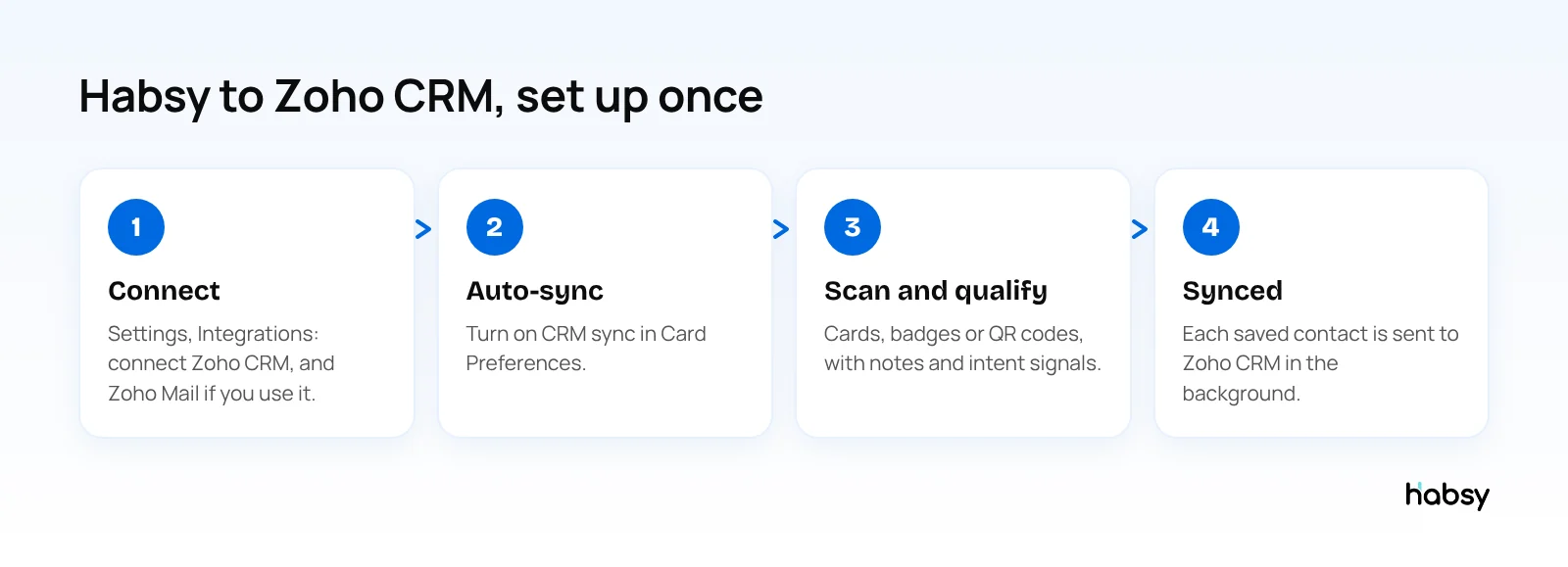
- Connect Zoho CRM in the Habsy app under Settings, Integrations. Connect Zoho Mail and Zoho Calendar there too if your team uses them.
- Turn on auto-sync in Card Preferences, per save or as a default.
- Scan and qualify. Paper cards, batch scans of up to 150 cards in about 5 minutes, QR and NFC badges, LinkedIn QR codes and digital cards from any provider. Add notes, voice notes and intent signals.
- Save. The contact is sent to Zoho CRM in the background. Cards captured offline are processed once you are back online.
Managers on the Habsy Platform can also push selected leads from an event campaign to Zoho CRM.
Keep the momentum
Turn captured contacts into timely follow-up.
Keep the note, intent and next action with every contact so your team knows what to do next.
Comparison
| Zoho Card Scanner | CSV import | Habsy Plus with Zoho CRM sync | |
|---|---|---|---|
| Saves to Zoho CRM | Lead or contact | Lead or contact | Synced after save |
| Batch scanning | Not described | Depends on scanner | Up to 150 cards in about 5 minutes |
| Event badges | Not described | Depends on scanner | QR and NFC |
| QR codes and digital cards | Not described | Depends on scanner | Any provider, LinkedIn QR codes |
| Cards in other languages | Not described | Depends on scanner | Read and translated into English |
| Voice notes and intent signals | Not described | If the export carries them | Yes, with Habsy Plus |
| Duplicates | Merge prompt by email | Zoho import rules | Flagged in Habsy for you to choose |
Keep your Zoho stack together
Many Zoho customers use more than the CRM. With Habsy Plus, Habsy connects to:
- Zoho CRM for contacts
- Zoho Mail for sending follow-up emails and templates from Habsy
- Zoho Calendar for scheduling meetings from a contact
That way, the scan, the follow-up email and the meeting all land in Zoho.
A Zoho-first team at an exhibition (illustrative)
A machine tools distributor runs everything on Zoho: CRM, Mail and Calendar.
- Before the show: the admin connects Zoho CRM, Zoho Mail and Zoho Calendar in Habsy, and each rep turns on CRM sync as a default in Card Preferences.
- At the stand: reps scan visitors’ visiting cards and badges, tap intent signals for machine type and order size, and record a voice note on each serious enquiry.
- Same evening: follow-up emails go out from each rep’s Zoho Mail account, written with AI from short prompts, and contacts are already in Zoho CRM.
- Next week: a rep schedules a factory visit from the contact in Habsy, and it lands in Zoho Calendar.
The scan, the email and the meeting all end up in Zoho, and the context from the stand stays with the contact in Habsy.
Tips
- Create fields in Zoho CRM for the intent signals you record at events, before importing a CSV.
- Use one tag per event so Zoho reports can show results per show.
- Follow up on Day 1. Habsy writes personal email and WhatsApp messages with AI from a short prompt. See WhatsApp follow-up message templates.
Using a different CRM? See Salesforce or HubSpot.
Bottom line
Zoho’s Card Scanner is a solid way to save a single card to Zoho CRM. For events and stacks of cards, scan with Habsy and let it sync to Zoho CRM, with the context your team needs to follow up. Try the Habsy scanner.
Frequently Asked Questions
Does Zoho CRM have a business card scanner?
Yes. Zoho’s Card Scanner app scans a business card and saves it to Zoho CRM as a lead or a contact. If the email already exists in the CRM, it prompts you to merge.
Can I scan many cards at once into Zoho CRM?
Zoho’s help pages describe scanning one card at a time. For a stack, use a scanner with batch scanning, such as Habsy, which handles up to 150 cards in about 5 minutes, then sync or import into Zoho CRM.
How do I connect Habsy to Zoho CRM?
With Habsy Plus, open Settings, Integrations in the Habsy app and connect Zoho CRM. Then turn on CRM sync in Card Preferences so each saved contact is sent to Zoho CRM in the background.
Can I import scanned cards into Zoho CRM from a CSV file?
Yes. Export the contacts from your scanner app as CSV and use Zoho CRM’s import to bring them in as leads or contacts, mapping each column to a field.
Does Habsy work with other Zoho apps?
Yes. With Habsy Plus, Habsy also integrates with Zoho Mail for email and Zoho Calendar for meetings.
Keep the momentum
Turn captured contacts into timely follow-up.
Keep the note, intent and next action with every contact so your team knows what to do next.