How to Scan Business Cards to Excel (Without Retyping a Single Field)
You came back from an event with a stack of business cards and need them in a spreadsheet. Typing them in takes hours and introduces mistakes. This guide shows the three ways to get cards into Excel, what a good export looks like, and the fastest route with a scanner app.
Marcus Chen8 min read
On this page
- The quick answer
- Three ways to get business cards into Excel
- What a good business card spreadsheet looks like
- Step by step: scan business cards to Excel with Habsy
- What the export can carry beyond the card
- For teams: one export instead of five spreadsheets
- Tips for a cleaner export
- Scanning business cards to Google Sheets
- When a spreadsheet is not enough
- Bottom line
The quick answer
To scan business cards to Excel, use a business card scanner app: scan the cards, check the extracted fields, then export the contacts as an Excel or CSV file. A good app puts each field in its own column, so the file opens cleanly in Excel or Google Sheets and imports into a CRM without reformatting. Habsy does this for free, with unlimited scanning.
Three ways to get business cards into Excel
1. Type them in by hand
This works for five cards. For fifty, it takes hours and you will make mistakes in emails and phone numbers, which are the two fields that matter most. Manual entry also tends to happen days after the event, when you no longer remember who said what.
2. Use your phone’s text recognition, then paste
Google Lens on Android and Live Text on iPhone can read the text on a card. You can copy it and paste it into a spreadsheet. The problem is that you get a block of text, not columns. You still have to split the name, title, company, email and phone into separate cells, one card at a time.
3. Use a business card scanner app that exports a spreadsheet
A scanner app reads the card and sorts each piece of text into the right field. When you export, every field becomes a column. This is the only method that stays fast when you have a stack of cards, and it is the only one that keeps notes and qualification next to each contact.
| Method | Time for 100 cards | Fields in separate columns | Notes and context | Cost |
|---|---|---|---|---|
| Manual typing | Several hours | Yes, if you are careful | Only if you remember | Free, but slow |
| Phone OCR and paste | Hours | No, you split them yourself | No | Free |
| Habsy scanner app | About 5 minutes with batch scan, plus review | Yes | Yes: notes, tags, intent signals, voice notes | Free plan, Habsy Plus for advanced features |
What a good business card spreadsheet looks like
Before you scan, decide what the finished file should contain. A spreadsheet is only useful if it can be filtered, sorted and imported.
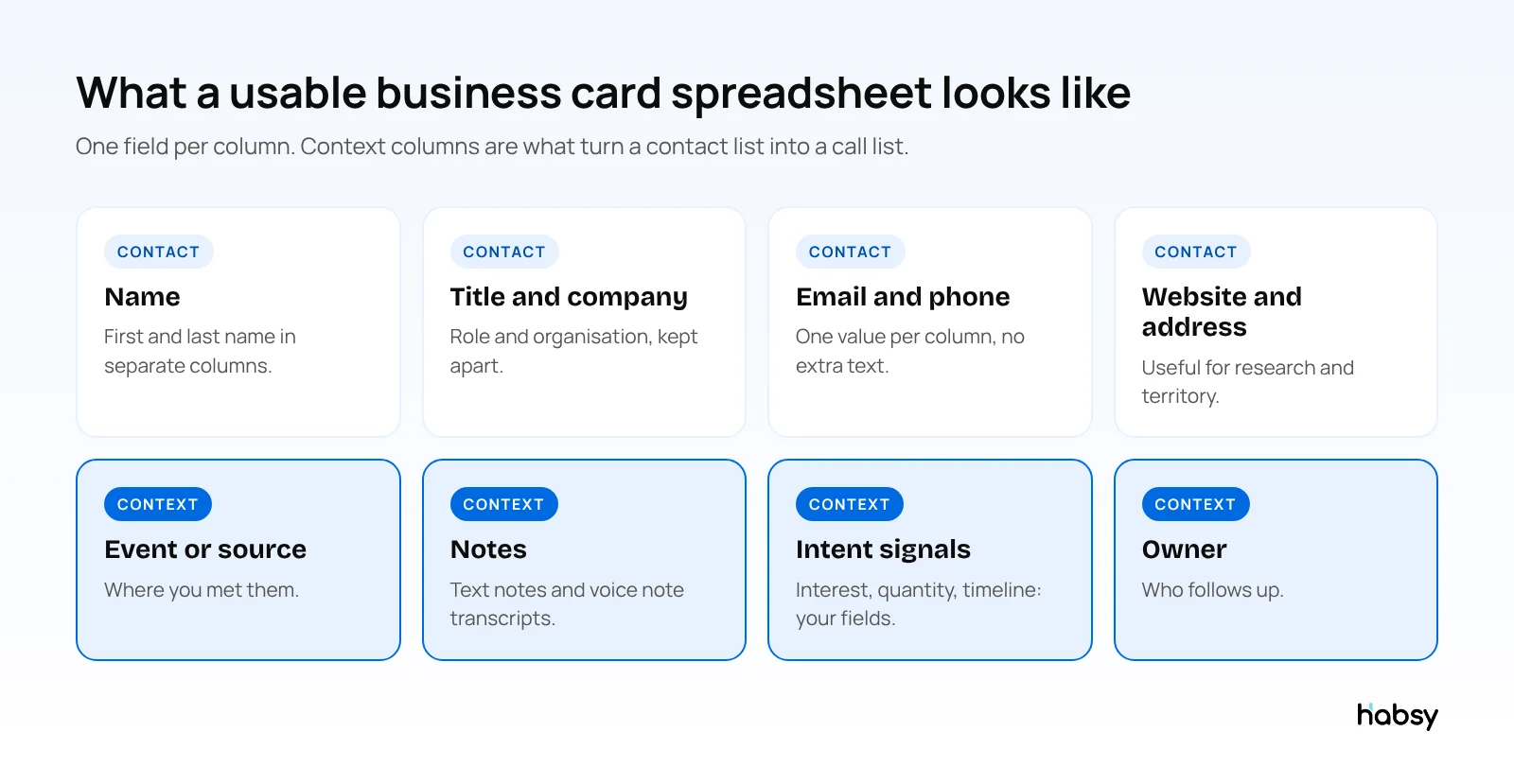
The contact columns come from the card. The context columns come from you, and they are what most teams forget. Without them, you have a list of names. With them, you know who wanted pricing, who wanted a demo and who was just collecting brochures.
Step by step: scan business cards to Excel with Habsy
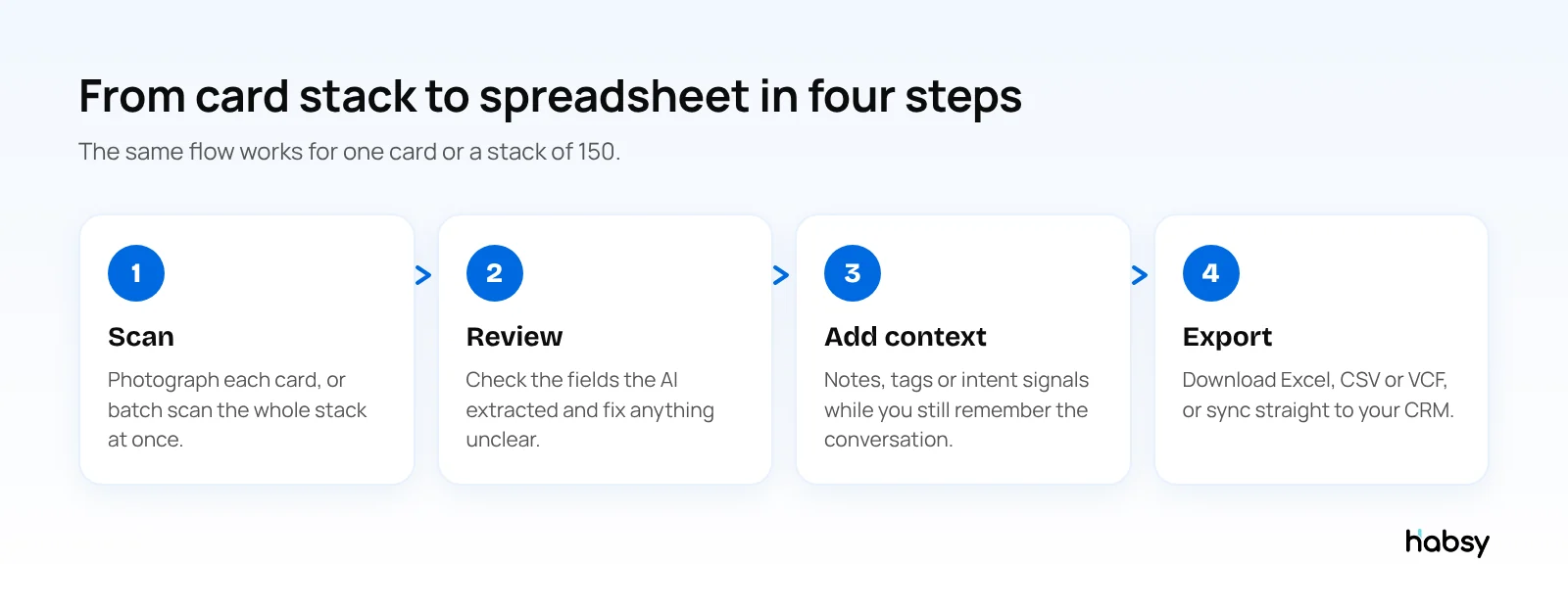
Step 1: Scan the cards
Open Habsy and photograph the card. Habsy uses OCR and AI to read the text and sort it into the right fields. Add the back of the card if it has more details. If you have a stack, use batch scan: Habsy handles up to 150 cards in about 5 minutes, and you set the lead context once for the whole batch. In our in-house tests, Habsy had the highest accuracy of the scanners we tested, at 99%.
Cards in other languages are read and translated into English, which helps at international events.
Step 2: Review the fields
Check the extracted details before you save. Fix anything the camera could not read clearly, such as a smudged phone number. This step takes seconds and keeps your spreadsheet clean.
Step 3: Add context while you remember it
Add a text note, a tag or a category. With Habsy Plus, you can also record a voice note, which is transcribed into English, and mark intent signals, the fields your team defines, such as interest level, order quantity or buying timeline. These become extra columns in your export.
If someone has already been saved, Habsy flags the possible duplicate and lets you choose what to do, so you do not end up with the same person twice in your sheet.
Step 4: Export to Excel, CSV or VCF
Select the contacts you want, for example everyone from one event, and export them as an Excel or CSV file. Open the file in Excel, or import it into Google Sheets. If you use a CRM, you can skip the spreadsheet: Habsy Plus connects to 10+ CRMs, including Salesforce, HubSpot and Zoho CRM, and syncs contacts directly.
Teams using the Habsy Platform can also export from the web with filters and custom export header templates, so the column names match what their CRM expects.
Put the guide into practice
Turn every event conversation into a follow-up.
Capture accurate contact details, add the context that matters and stay ready for the follow-up.
What the export can carry beyond the card
A spreadsheet made by typing up cards contains only what was printed on them. A Habsy export can also carry what happened when you met the person, which is what makes the sheet useful to whoever follows up:
| Column | Where it comes from | Plan |
|---|---|---|
| Name, title, company, email, phone, website, address | The card, badge or QR code | Free |
| Text notes | Typed by you after the scan | Free |
| Voice note transcript | Your voice note, transcribed into English | Habsy Plus |
| Intent signals | Fields your team defined, such as interest or quantity | Habsy Plus |
| Category | Set by you, or a default category your admin assigns | Habsy Plus |
Illustrative example. An MSME exhibitor comes back from a regional trade fair with 300 visiting cards. On the first evening, the owner batch scans them in two stacks, one per day of the fair, setting the event once for each batch. Over the next morning he adds a short note to the 40 he remembers best. He exports everything to Excel, sorts by the note column, and hands the top 40 to his sales coordinator, who calls them that afternoon from the same sheet she always uses.
For teams: one export instead of five spreadsheets
When four people scan at the same event, you usually end up with four files in four formats. On the Habsy Platform, every scan from the team lands in one place. Managers can filter by campaign, company location or intent signals, and export with a custom export header template, so the column names match exactly what your CRM import or your sales team expects.
Tips for a cleaner export
- Scan on the day. Cards scanned the same evening come with better notes than cards scanned a week later.
- Use the same tags across the team. If one person writes “Demo” and another writes “demo req”, your filters break.
- Keep one column per field. Do not merge phone numbers or put two emails in one cell.
- Add the event name. It is the simplest way to measure which events produced results.
- Capture offline if you need to. Habsy captures cards without internet and processes them once you are back online, so poor venue Wi-Fi does not hold you up.
Scanning business cards to Google Sheets
Google Sheets reads the same files. Export a CSV or Excel file from Habsy, then in Google Sheets choose File, Import and upload it. Columns stay as they are. If you prefer to keep contacts in your Google account rather than a sheet, Habsy Plus can also sync to Google Contacts.
When a spreadsheet is not enough
A spreadsheet is a good handover format, but it does not remind anyone to follow up. Habsy lets you add a reminder once a contact is saved, write a personal follow-up email or WhatsApp message with AI from a short prompt, and keep every note on the contact. For more on what happens after the export, read our guide to batch business card scanning and our Day 1 follow-up guide.
Bottom line
If you only have a few cards, typing is fine. For anything more, use a scanner app that exports one field per column and keeps your notes with each contact. Habsy is free to start, scans without limits, and exports straight to Excel. Try the business card scanner.
Frequently Asked Questions
How do I scan business cards into Excel?
Use a business card scanner app. Scan each card or batch scan the stack, review the fields the app extracted, then export the contacts as an Excel or CSV file. Habsy does this on the free plan, with unlimited scanning.
Can I scan business cards to Google Sheets?
Yes. Export a CSV or Excel file from your scanner app and open it in Google Sheets with File, Import. The columns carry over as they are.
Is there a free app to scan business cards to Excel?
Habsy’s free plan includes unlimited scanning and contact export to Excel, CSV and VCF. Phone tools like Google Lens and Live Text can read card text for free, but you have to paste each field into the sheet yourself.
How many cards can I scan at once?
Habsy’s batch scan handles up to 150 cards in about 5 minutes. You set the lead context once and it applies to every card in the batch.
What columns should a business card spreadsheet have?
At minimum: first name, last name, job title, company, email, phone, website and address. Add event or source, owner, notes and any qualification fields you use, so the sheet is ready to import into a CRM.
Will the export include my voice notes?
Yes. With Habsy Plus, voice notes are transcribed into English and the transcripts are included in contact exports, alongside your text notes and custom fields.
Can the Excel export include my notes and voice notes?
Yes. Text notes are included on the free plan. With Habsy Plus, voice notes are transcribed into English and the transcripts are included in contact exports, along with your intent signals.
Put the guide into practice
Turn every event conversation into a follow-up.
Capture accurate contact details, add the context that matters and stay ready for the follow-up.