Batch Business Card Scanning: How to Scan a Stack of Cards in Minutes
You are back from a conference with 120 business cards. Scanning them one by one takes an evening. Batch scanning takes minutes. This guide explains how batch business card scanning works, how to prepare the stack, and how to make sure every contact is right before you follow up.
Marcus Chen6 min read
The quick answer
Batch business card scanning lets you capture a whole stack of cards in one session instead of scanning and saving each card separately. In Habsy, you set the context once, such as the event name and tags, then scan card after card: up to 150 cards in about 5 minutes. Habsy reads each card with OCR and AI, creates the contacts, and you review them before you follow up. Batch scanning is free.
When batch scanning makes sense
- After a conference or trade show, when you have a pocket full of cards
- After a busy booth day, when there was no time to scan during conversations
- When digitising an old collection, such as a desk drawer or a card holder
- When you join a company and inherit a predecessor’s card file
If you are scanning one card in the middle of a conversation, use the normal scan, which lets you add the back of the card and notes before saving.
Batch scanning vs other options
| Method | 100 cards | Accuracy | Notes and context |
|---|---|---|---|
| Typing by hand | Hours | Prone to typos | Only if you remember |
| One card at a time in an app | Much longer: each card scanned and saved separately | High | Yes, per card |
| Batch scanning in Habsy | About 5 minutes, plus review | 99% in our in-house tests | Context set once for the batch, notes per card |
| Human transcription services | Often hours or more, paid per card | High | No |
How to batch scan business cards with Habsy
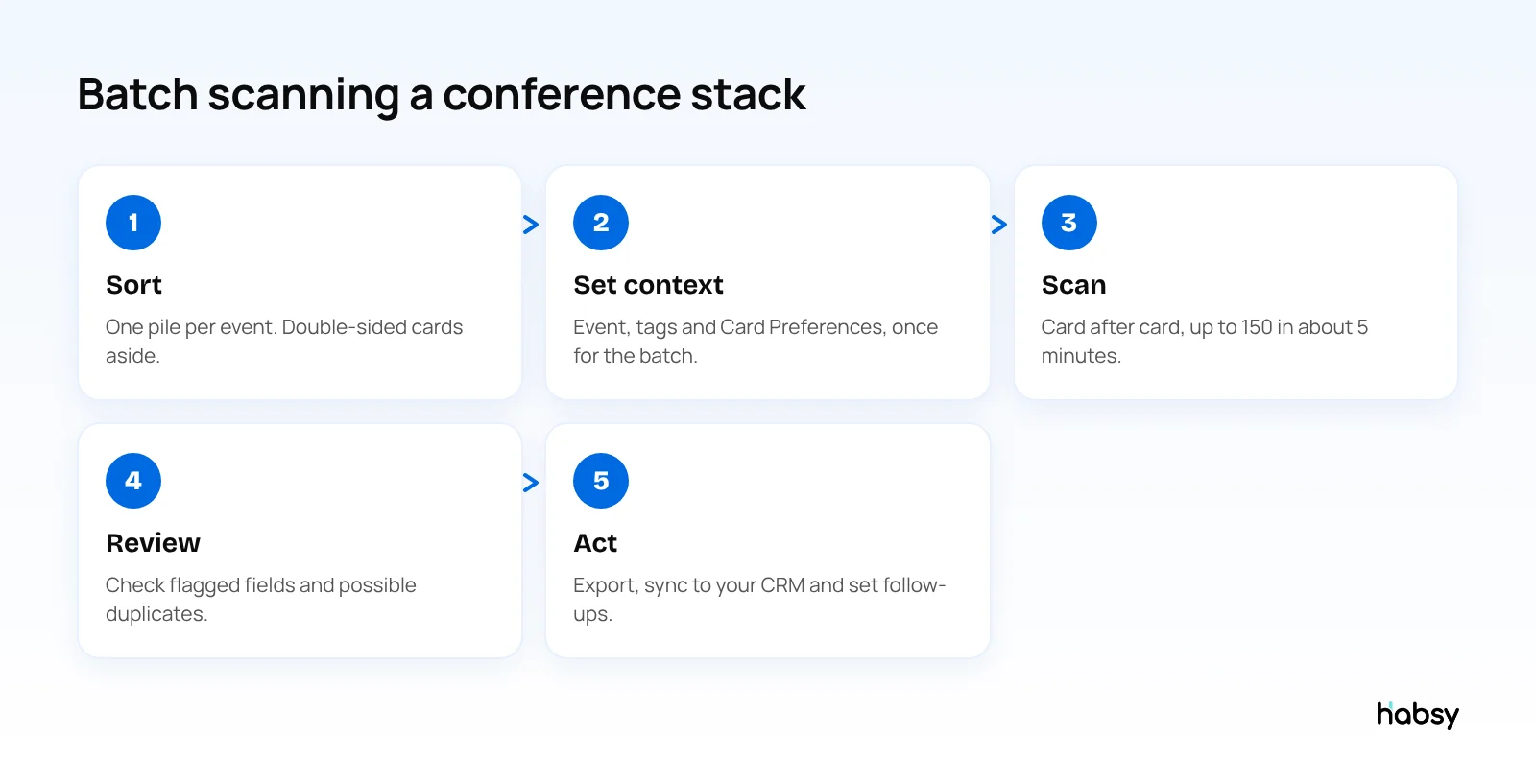
1. Prepare the stack
- Sort by event. One batch per event keeps your context and reports accurate.
- Set aside double-sided cards if the back has contact details. Scan those individually with the back added.
- Find good light. Daylight or a bright, even lamp. Avoid shadows across the card.
- Use a plain, dark surface so the card edges stand out.
2. Set the context once
Before scanning, set the lead context for the batch, such as the event and tags. You can also set Card Preferences for the batch. With Habsy Plus, these run in the background after each card is saved:
- Auto-enrich the contact with an AI Enriched Contact Brief
- Auto-send an email or WhatsApp template (requires the matching integration)
- Auto-send your digital card
- Auto-sync the contact to your connected CRM
3. Scan
Photograph each card in turn. Keep the card flat and fill most of the frame. Habsy reads cards in multiple languages and translates them into English, which helps after international events.
4. Review
Check the contacts before you act on them. Look for fields Habsy could not read clearly, such as a smudged phone number, and fix them. Habsy flags possible duplicates, for example someone you met at an earlier event, and lets you choose what to keep.
5. Act on the batch
- Export the batch to Excel, CSV or VCF. See how to scan business cards to Excel.
- Sync to your CRM with Habsy Plus: 10+ CRMs including Salesforce, HubSpot and Zoho CRM.
- Add reminders for the contacts you need to call first.
- Send follow-ups with AI-written email or WhatsApp messages, or with Habsy Plus, templates and bulk sending.
Put the guide into practice
Turn every event conversation into a follow-up.
Capture accurate contact details, add the context that matters and stay ready for the follow-up.
A three-day expo, batch by batch (illustrative)
An exhibitor comes back each evening with 40 to 60 cards. Instead of one big stack at the end, the team batch scans every night:
| Evening | Batch | Context set once | Review |
|---|---|---|---|
| Day 1 | 48 cards | Event: the expo, tag: Day 1 | Fix unclear fields, add notes to the 10 best |
| Day 2 | 61 cards | Event: the expo, tag: Day 2 | Resolve flagged duplicates from Day 1 visitors |
| Day 3 | 35 cards | Event: the expo, tag: Day 3 | Add notes, set reminders for the top leads |
Scanning each night keeps the memory of the conversations fresh, and by the time the team flies home the list is clean.
Think before you auto-send to a whole batch
Card Preferences apply to every card in a batch, so they are worth a moment’s thought:
- Auto-enrich is safe to switch on for a whole batch: it only adds an AI Enriched Contact Brief for you.
- Auto-sync to CRM is usually right, as long as your CRM expects these contacts.
- Auto-send your digital card suits a batch of people you actually spoke to. For a stack collected from a fishbowl or a raffle, you may prefer to send it selectively.
- Auto-send an email or WhatsApp template works best when the batch shares one context, such as everyone who asked for the catalogue on Day 2.
Tips for better accuracy
- Hold the phone parallel to the card, not at an angle.
- Avoid glare from glossy or foil cards by tilting the light, not the phone.
- Keep fingers off the text.
- Scan cards with vertical layouts or unusual fonts individually if a batch result looks wrong.
- Review emails and phone numbers first. They matter most for follow-up.
Do not lose the context
The weakness of scanning a stack later is that you have forgotten the conversations. Two habits help:
- Write on the card at the event. A few words like “quote, 500 units, March” on the back. Add them as a note during review.
- Scan at the booth when you can. With Habsy Plus, a 10-second voice note and intent signals at the moment you meet someone are worth more than any note written the next day. See voice notes for sales teams.
For more on why batch processing saves time, see save time, stay organized.
Bottom line
Batch scanning turns an evening of typing into a few minutes of scanning and a short review. Sort the stack, set the context once, scan, review and act. Habsy batch scans up to 150 cards in about 5 minutes, free. Try the business card scanner.
Frequently Asked Questions
What is batch business card scanning?
Batch business card scanning means capturing many business cards in one session, rather than scanning and saving them one at a time. The app reads each card and creates a contact for each, which you then review.
How many business cards can I scan at once?
With Habsy, up to 150 cards in about 5 minutes in a single batch.
Is batch scanning free in Habsy?
Yes. Batch scanning is part of Habsy’s free plan, together with unlimited scanning and export to Excel, CSV or VCF.
Can I scan double-sided cards in a batch?
Habsy’s normal scan lets you add the back of a card. For a batch, keep double-sided cards aside and scan them individually so both sides are captured, or scan the side with the contact details.
What happens to duplicates in a batch?
Habsy flags possible duplicates and lets you choose what to do with each, so nothing is merged without your confirmation.
Can every card in a batch be enriched or synced to my CRM automatically?
Yes, with Habsy Plus. Set Card Preferences once for the batch, such as auto-enrich or auto-sync to your CRM, and they run in the background for every saved card.
Put the guide into practice
Turn every event conversation into a follow-up.
Capture accurate contact details, add the context that matters and stay ready for the follow-up.