How to Scan Business Cards Into Salesforce
Salesforce is where your leads should end up, but typing business cards into it is slow and error-prone. This guide compares the three ways to get cards into Salesforce, and shows how to connect Habsy so every scanned card syncs without retyping.
Marcus Chen5 min read
The quick answer
The fastest way to scan business cards into Salesforce is a scanner app with a direct Salesforce integration. With Habsy Plus, you connect Salesforce once in Settings, Integrations, turn on CRM sync in Card Preferences, and every card you scan and save is sent to Salesforce in the background. If you do not want an integration, export your scanned contacts as a CSV file and import them with Salesforce’s Data Import Wizard.
Three ways to get business cards into Salesforce
| Method | Speed | Context at capture | Works offline | Best for |
|---|---|---|---|---|
| Scanner app with direct sync (Habsy Plus) | Syncs after save | Notes, voice notes, intent signals | Capture yes, sync once online | Reps who meet people often |
| Scan, export CSV, Data Import Wizard | Batch, after the event | Whatever the export carries | Yes | Occasional imports, admins |
| AppExchange scanner app | Varies by app | Varies by app | Varies | Teams standardised on one vendor |
1. Direct sync from a scanner app
A scanner app connected to Salesforce removes the file step. You scan, check the fields, add context and save. The contact goes to Salesforce on its own.
2. CSV import with the Data Import Wizard
Any scanner that exports CSV works with Salesforce. Habsy exports to Excel, CSV or VCF for free. In Salesforce, the Data Import Wizard imports leads, contacts and accounts and lets you map each column to a field. This is useful for a one-time clean-up or if your admin prefers to review imports.
3. An AppExchange scanner
Several scanner apps are installed into Salesforce from AppExchange. They work well for teams that want everything inside Salesforce, but most focus on cards and badges, and the follow-up happens elsewhere.
How to connect Habsy to Salesforce
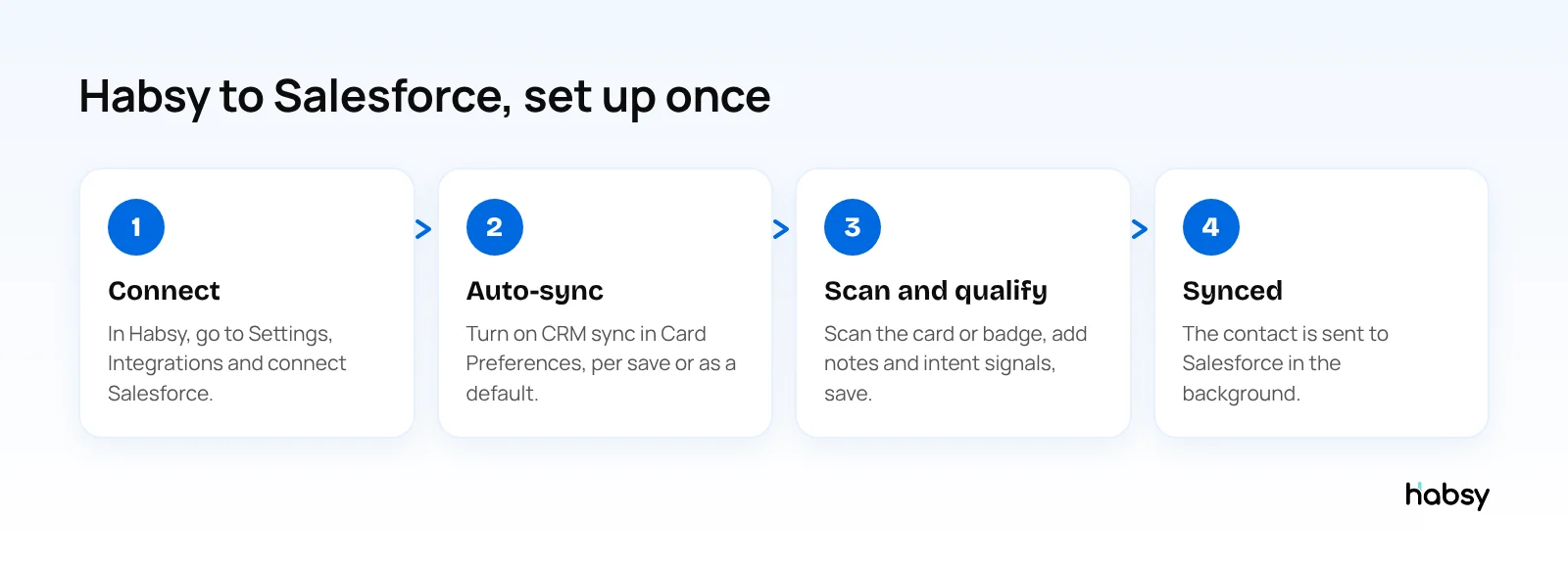
- Connect Salesforce. In the Habsy app, open Settings, Integrations and connect your Salesforce account. Integrations are also available on the Habsy Platform.
- Turn on auto-sync. In Card Preferences, turn on sync to your connected CRM. You can set it each time you save a card, or as a default in Settings.
- Scan and qualify. Scan the card, badge or QR code. Check the fields, add a note or voice note, and mark intent signals.
- Save. The contact is sent to Salesforce in the background after save. If you captured offline, Habsy processes the card once you are back online.
Card Preferences can also auto-enrich the contact, send your digital card and, with the matching integration, send an email or WhatsApp template after save, so one scan can trigger the whole first step of follow-up.
If your Salesforce org needs something specific, Habsy builds custom CRM integrations on request.
Put the guide into practice
Turn every event conversation into a follow-up.
Capture accurate contact details, add the context that matters and stay ready for the follow-up.
From booth to Salesforce in one day (illustrative)
A software company exhibits at a two-day conference with five reps.
- Before the show: the sales ops lead connects Salesforce in Habsy, asks every rep to turn on CRM sync as a default in Card Preferences, and agrees three intent signals with the reps: product interest, team size and timeline.
- At the booth: reps scan badges, cards and LinkedIn QR codes. After each conversation they tap the intent signals and record a short voice note. Contacts sync to Salesforce after save. Scans made in the hall’s dead zone are captured offline and processed once the phones are back online.
- That evening: the sales manager opens the event campaign on the Habsy Platform, filters for “demo requested, this quarter”, and assigns those contacts to account executives with reminders.
- Next morning: account executives read the voice note transcript in Habsy before calling, so the first call picks up where the booth conversation left off.
Nobody typed a contact into Salesforce, and nobody waited for a spreadsheet.
Why scan with Habsy rather than type into Salesforce
- Accuracy. 99% scan accuracy, the highest in our in-house tests, with a review step before saving.
- Every source. Paper cards, batch scans of up to 150 cards in about 5 minutes, QR and NFC badges, LinkedIn QR codes and digital cards from any provider.
- Context. Voice notes transcribed into English and searchable, intent signals your team defines, and categories.
- Clean records. Habsy flags possible duplicates and lets you choose, before anything reaches Salesforce.
- Speed at the booth. A scan takes seconds. Typing into Salesforce on a phone in a busy hall does not.
Tips for clean Salesforce data
- Agree on intent signals before the event, so every rep records the same fields.
- Tag the event on every contact, so you can trace revenue back to the show.
- Review flagged fields before saving, especially email and phone.
- Decide who owns each lead. On the Habsy Platform, assign contacts to team members with a reminder.
- Follow up on Day 1. See our Day 1 follow-up guide.
Using another CRM? See scan business cards to HubSpot and scan business cards to Zoho CRM, or compare CRM built-in scanners with Habsy.
Bottom line
To scan business cards into Salesforce without retyping, connect a scanner app once and let it sync after every save. Habsy Plus does that, and keeps the notes and intent signals that make the Salesforce record worth calling. See the business card scanner.
Frequently Asked Questions
Can I scan business cards directly into Salesforce?
Yes, with a scanner app that integrates with Salesforce. Habsy Plus connects to Salesforce, and with auto-sync on in Card Preferences, each contact is sent to Salesforce in the background after you save it.
Does the Salesforce mobile app have a business card scanner?
Salesforce teams usually add card scanning through an AppExchange app or a connected scanner app such as Habsy, rather than through the standard Salesforce mobile app.
How do I import scanned business cards into Salesforce without an integration?
Export the scanned contacts from your scanner app as a CSV file, then use Salesforce’s Data Import Wizard to import them as leads or contacts, mapping each column to a Salesforce field.
Do I need Habsy Plus for Salesforce sync?
Yes. CRM integrations are part of Habsy Plus, at USD 100 per user per year, lower in some regions. Scanning and CSV export are free.
Can a manager push event leads to Salesforce for the whole team?
Yes. On the Habsy Platform, managers can push selected leads from a campaign to the connected CRM, and export with filters and custom header templates.
Put the guide into practice
Turn every event conversation into a follow-up.
Capture accurate contact details, add the context that matters and stay ready for the follow-up.