Blog
You left the conference with a stack of business cards, a half-drained phone battery, and good intentions. Three days later, the cards are still sitting on your desk. Half of your follow-up window is gone.
This guide walks you through the fastest, most systematic way to get from a pile of cards to a clean, CRM-ready contact list, without a spreadsheet marathon or a data entry session that lasts until midnight.
TL;DR
Use batch scanning to process a full card stack in minutes, not hours.
Apply a simple 3-to-6-field schema (Interest, Product Line, Priority) at capture so the list is usable the moment it leaves your hands.
Set reminders and follow-up notes while context is still fresh, before you close the app.
Push contacts to your CRM via direct integration or a mapped CSV within 24 hours of the event.
Use saved searches to blitz your hottest leads on Day 0, all from the same app you scanned with.

Turn your post-conference card stack into a clean, searchable contact list. Step-by-step guide to batch scanning, deduplication, and CRM export in under 60 minutes.
Leads captured at conferences decay fast. Research on sales outreach consistently shows that response rates drop sharply after the first 48 hours. The person who seemed genuinely interested in your product on Tuesday afternoon has moved on to three other vendors by Thursday morning.
The window is narrow. That is not a reason to panic. It is a reason to set up a process that compresses the work.
The goal is simple: scan everything, qualify it once, clean it once, and export a mapped CSV to your CRM or Google Sheet before the end of Day 1. Everything after that is outreach, not data entry.
Start Smart: Gather and Consolidate All Leads First
Before you open any app, collect all your cards in one place. That includes:
Cards from booth conversations
Cards from hallway or networking dinner meetings
Cards collected by teammates at different sessions
If you had multiple people at the event, the biggest deduplication headache comes from the same contact being scanned by two different reps. Gathering everything first gives the tool one pass to catch overlaps rather than merging across separate imports later.
Sort loosely by priority if you have the cards physically in front of you. "Definitely follow up," "worth a call," and "not sure" is enough. You will refine this in the app, but a rough pass now saves time in the review queue.
Define a Capture Schema That Drives Follow-Up, Not Just Data
This step is the one most people skip. It is also the one that makes the biggest difference.
A capture schema is just a short list of fields you fill in for every contact. Think of it as the five questions you would ask yourself about each person before handing their card to a sales rep.
A practical starting schema for post-conference scanning:
Interest: Hot / Warm / Cold
Product Line: which of your offerings was most relevant
Priority: P1 / P2 / P3
Source: the name of the event (e.g., AutoExpo2025)
Owner: the rep who will handle follow-up
Keep required fields at three or fewer if you are doing this at speed. More than that and you will either rush through them or skip them entirely, which defeats the purpose.
In Habsy, you can save this as an event preset before you start. Every card you scan during the session will prompt the same fields. You set the schema once, not 150 times.

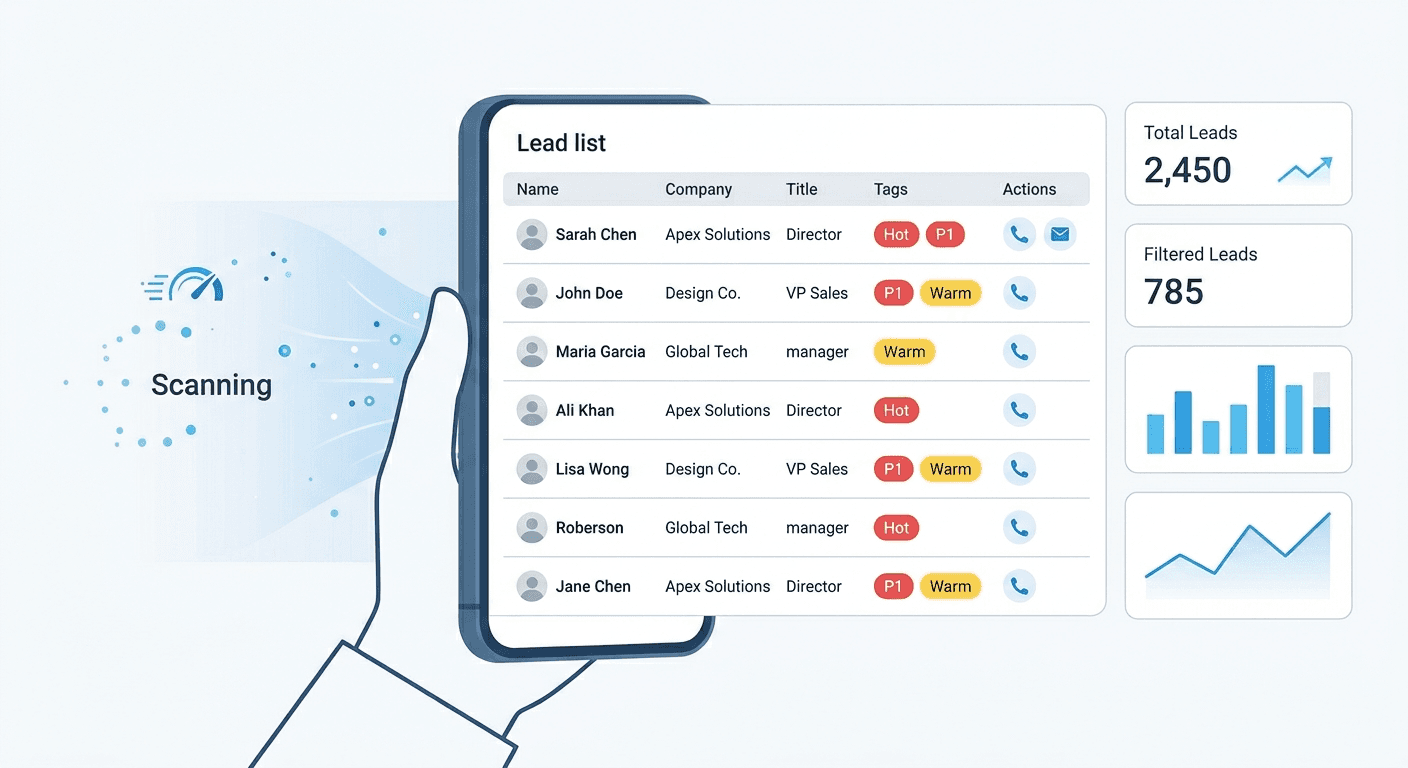
Open the batch scanning mode in your app. In Habsy, this is built for exactly this scenario: a stack of cards you need to process quickly, ideally in the first hour after an event while context is still fresh.
A few practical tips for a smooth batch run:
Lighting matters. Cards with foil printing or dark backgrounds can cause OCR errors. Scan in natural light or at least make sure your overhead light is not creating glare directly on the card face.
Keep the card flat. Curled cards or cards held at an angle introduce errors in the name and email fields. A flat surface behind the card is faster than re-scanning.
Do not skip the review queue. Every batch scanner has a review step. This is where OCR errors surface: a "1" parsed as an "l," a missing country code on a phone number, a title that ran together with the company name. The review step in Habsy is fast. You are confirming fields, not retyping them. Skipping it means your CRM inherits the errors.
In internal tests, Habsy processes approximately 150 cards in about 5 minutes using batch mode with a review step. Your real-world time will depend on card quality and how thoroughly you fill the custom fields.
Capture Context That Actually Converts
Not every card needs a note. But some conversations deserve more than a name and email.
If someone told you they are evaluating vendors for a Q4 rollout, or that they want a demo specifically for the east coast team, or that the CTO is the decision-maker and not them, that context will not survive in a spreadsheet column.
A 10-second voice note attached to the contact captures everything. "Needs pricing for Pro line. I want a demo before the end of October. Introduced by Rajan at the networking dinner."
The next day, when the SDR opens that record before making the call, they are not starting cold. They are continuing a conversation. That difference shows in connect rates.
In Habsy, voice notes are attached directly to the contact and can be included as a transcript column in your CSV export if your CRM supports it.
Once your contacts are qualified and your voice notes are attached, it is time to get them into the tools your sales team actually works from. Habsy gives you two routes.
If your CRM supports a direct integration, contacts can sync across without any manual file handling. This is the fastest path, and it keeps your pipeline moving even before you are back at your desk.
If you prefer to control exactly what goes in, or your CRM is not yet connected, export a mapped CSV. Common columns to include are Full Name, Company, Title, Email, Phone, Tags, Interest, Product Line, Priority, Owner, Source, Campaign, Next Action Date, and Note Transcript. Save this mapping as a preset and the next event takes a fraction of the time.
Import the CSV using your CRM's native import tool. Most CRMs (HubSpot, Zoho, Salesforce) let you match column names to field names on the way in. If your column names stay consistent across exports, this step becomes routine.
If you are not yet using a CRM, export to Google Sheets. Use saved searches in Habsy to create targeted slices and work those segments directly until you are ready to move.
What makes this different from a standard CSV workflow is that you do not have to switch apps to get there. Habsy handles the scan, the qualification, the voice note, the reminder, and the export in one place. Your team is not stitching together four tools to close a single loop.
Lock in Follow-Ups Before Momentum Fades
This is the step that gets skipped because it feels optional. It is not.
A reminder tied to a contact is the difference between "I meant to follow up" and "I did follow up." Set the reminder while you still know why it matters, before the card goes into a drawer and the context fades.
For most conference contacts, the right preset is Tomorrow 10:00. That gives you tonight to finish processing and gives the SDR the morning of Day 1 to start outreach with everything still fresh.
For high-priority contacts who need a same-day response, set Today EOD instead.
In Habsy, reminders appear in a consolidated My Reminders view, sorted by owner and due date. Your team does not need to hunt through a contact list to know who to call first. The app surfaces what is due, assigns it to the right person, and tracks it through to completion. Scan, qualify, note, export, remind: one app, one flow, no context lost between steps.
Before your CSV even lands in the CRM, your team can start working the hottest leads directly from Habsy using saved searches.
A saved search is a reusable filter. You build it once ("Interest = Demo AND Priority = P1 AND Reminder = Due Today") and pin it to the top of your view. One click, and you have your call list for the morning.
This is what Day 0 readiness looks like in practice. Not everyone needs to wait for the import to finish. SDRs with access to Habsy can start calling while the export is still being set up. The app they used to scan the cards is the same one they use to run the morning blitz. No handoff, no lag, no "I will send you the list later."
Waiting until Day 3: The momentum from the event is gone. Contacts do not remember you as clearly. Your competitors who followed up on Day 1 already have the meeting.
Scanning without a schema: Raw names and emails are not actionable. You need at least Interest and Priority to know who to call first.
Skipping the review queue: OCR is very good. It is not perfect. A five-minute review pass saves hours of bad data cleanup downstream.
Splitting the workflow across too many tools: Scanning in one app, noting in another, setting reminders in a third, and exporting from a spreadsheet means context gets lost at every handoff. The cleaner the single-app flow, the more context survives to the first call.
Using too many required fields: If you ask reps to fill eight fields per card during a conference rush, they will fill none of them. Three to four required fields is the ceiling for adoption.
Print this and use it after your next event.
Collect all cards from all team members
Set up or confirm your event preset (3 to 6 fields)
Run batch scan with the review queue
Add voice notes to high-priority contacts
Export to CRM via integration or mapped CSV
Set reminders (Tomorrow 10:00 for most; Today EOD for urgent)
Confirm owners and reminder assignments with your team
Pin saved searches for Day 0 blitz
Done in under an hour. Outreach starts tomorrow morning.
FAQs:
1. How fast can I scan business cards in bulk using Habsy?
With Habsy’s batch scanning, you can process around 100–150 business cards in just a few minutes, including a quick review step to ensure accuracy. This helps you turn card stacks into a usable lead list the same day.
2. Can I use Habsy to scan business cards without internet?
Yes. Habsy works fully offline, allowing you to scan business cards, capture custom fields, add voice notes, and set reminders even in low-connectivity venues. Your data syncs automatically once you’re back online.
3. How does Habsy prevent duplicate contacts from events?
Habsy automatically detects duplicates using email, phone number, or company and name. Before exporting, you can review and merge duplicates, ensuring your CRM gets a clean and accurate contact list.
4. What information should I capture in Habsy along with business cards?
Habsy lets you capture structured fields like Interest, Product Line, and Priority, along with tags and voice notes. This ensures every lead is qualified and ready for follow-up, not just stored as raw contact data.
5. How does Habsy help me send contacts to my CRM quickly?
Habsy exports clean, mapped CSV files with all your captured data, including custom fields, notes, and reminders. You can import these directly into CRMs like HubSpot, Zoho, or Salesforce and start follow-ups within 24 hours.