Blog
QR codes are everywhere. On menus, packaging, event badges, posters, and business cards. Most people have scanned dozens of them without thinking twice about what is actually encoded inside or what happens after the scan.
But for sales teams and exhibitors, that distinction matters. There is a meaningful difference between a standard QR code and a dynamic, profile-linked code built for professional use, and understanding it changes how you approach networking, lead capture, and contact sharing at events.
Digital business cards have transformed networking, but what makes them so easy to share? Learn how Business QR Codes work behind the scenes : The Future of Networking: Digital Business Card Exchange
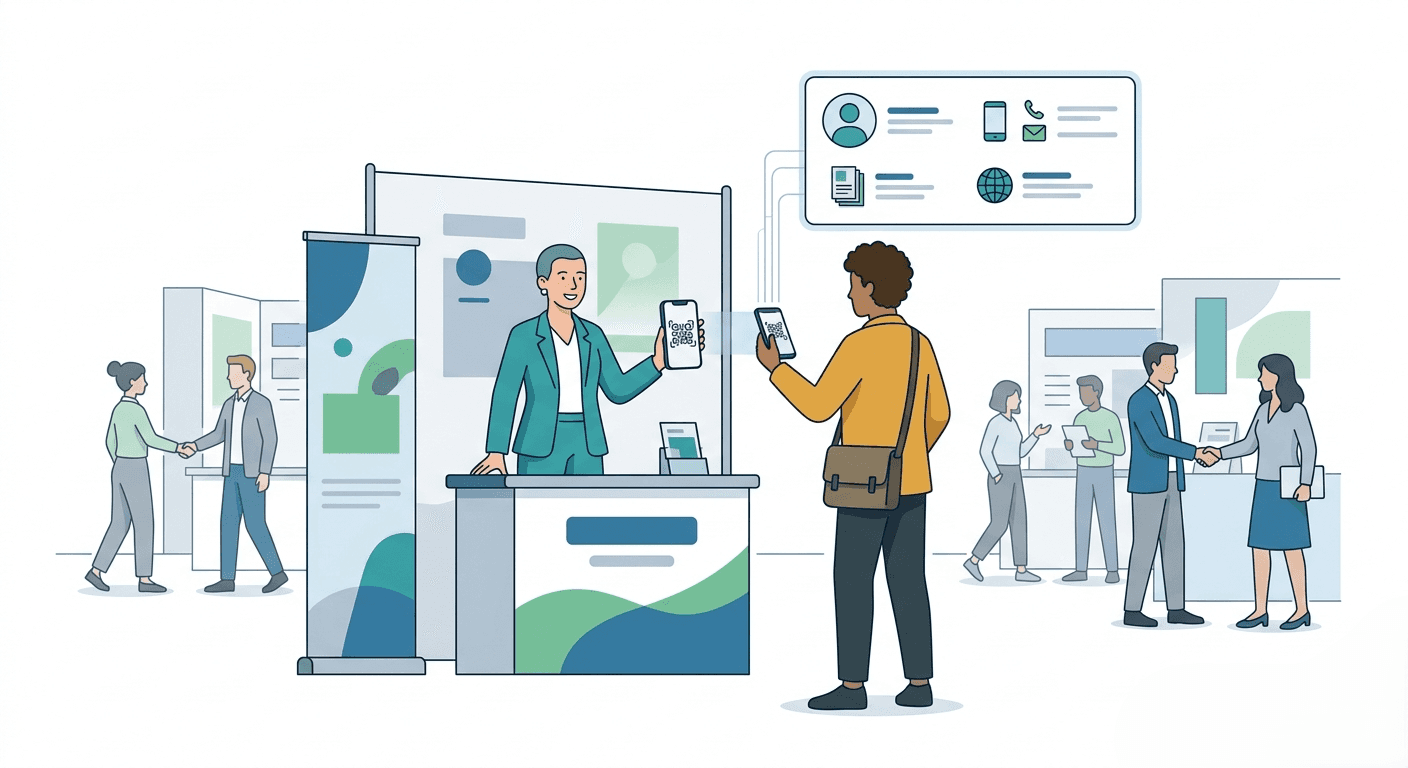
Discover how digital business cards for business use dynamic QR codes to simplify networking, capture leads, and streamline event follow-up workflows.
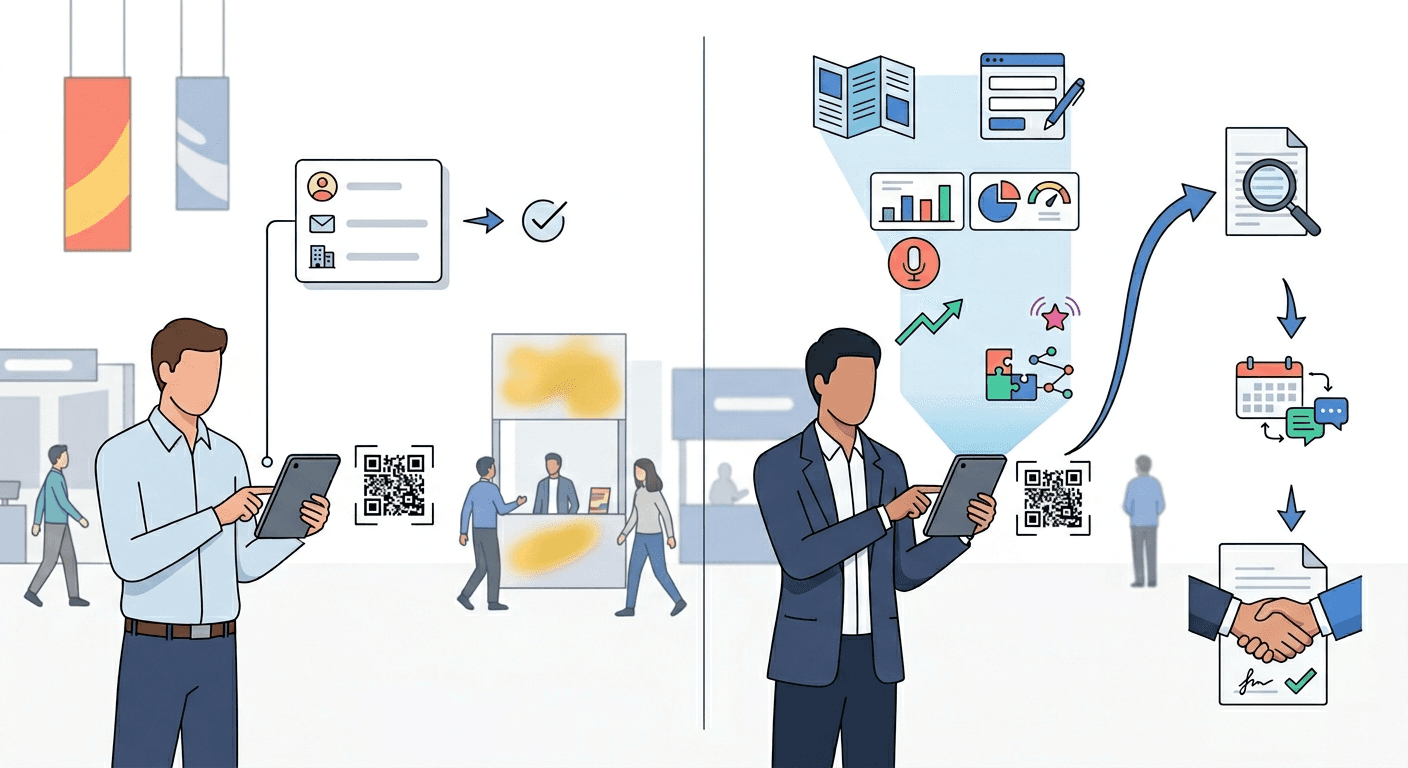
A standard QR code is a machine-readable matrix barcode that encodes a fixed string of data. That data could be a URL, a block of plain text, a phone number, a Wi-Fi password, or any other static value.
The defining characteristic of a standard QR code is that it is static. Once generated, the encoded data cannot be changed. If the URL it points to changes, or if the contact details it contains become outdated, the QR code itself is useless. You have to generate a new one.
Standard QR codes are generated in seconds using free tools and require no account, no backend, and no ongoing management. That makes them convenient for one-off use cases. It also makes them limited for anything that requires accuracy over time
What Is a Business QR Code?
A business QR code is a dynamic, profile-linked code designed specifically for professional contact sharing. Instead of encoding a static block of data, it points to a live digital profile that can be updated at any time without changing the QR code itself.
When someone scans a business QR code, they do not just receive a name and phone number. They land on a full digital contact profile that can include:
Name, title, and company
Email address and phone number
LinkedIn and other professional links
Website or portfolio
A direct option to save the contact to their phone
The QR code stays the same. The profile behind it can be edited whenever details change.
Feature | Standard QR Code | Business QR Code |
|---|---|---|
Data type | Static, encoded at creation | Dynamic, linked to a live profile |
Updateable | No | Yes, without regenerating the code |
Contact sharing | Manual text or vCard | Full digital profile with save option |
Event lead capture | Not designed for it | Built for it |
CRM sync | No | Yes, via platforms like Habsy |
Why Static QR Codes Fall Short for Sales and Events
A standard QR code works fine if you are pointing someone to a webpage that never changes. In a professional networking or event context, it creates several problems.
Your details change. People change roles, companies, phone numbers, and email addresses. A static QR code printed on a business card two years ago still points to wherever it pointed then. There is no way to update it without reprinting.
There is no follow-up mechanism. A standard QR code delivers information in one direction. The person who scanned it gets your details. You get nothing. There is no record of who scanned it, when, or how many times.
It does not connect to your workflow. When a sales rep scans a standard QR code at a trade show, that data sits in isolation. There is no path from the scan to a CRM record, a follow-up task, or a nurture sequence without significant manual work.
At trade shows and B2B events, business QR codes serve two distinct functions: sharing and scanning.
QR sharing is when a sales rep or exhibitor displays their own business QR code so that attendees can scan it and receive their contact profile. The rep does not need to hand over a physical card. The attendee scans, saves, and the contact is captured cleanly on both sides.
QR scanning is when a sales rep uses their phone to scan an attendee's badge QR code or profile QR code to capture that person's contact details into their own system. This is the foundation of modern event lead capture.
In the Habsy app, both functions are built in. You can share your own digital profile via QR code and scan incoming QR codes from badges or other digital cards. Every scan creates a contact record in your View Cards page immediately, with no manual entry required.
Most QR code tools stop at the scan. Habsy is built for everything that happens after it.
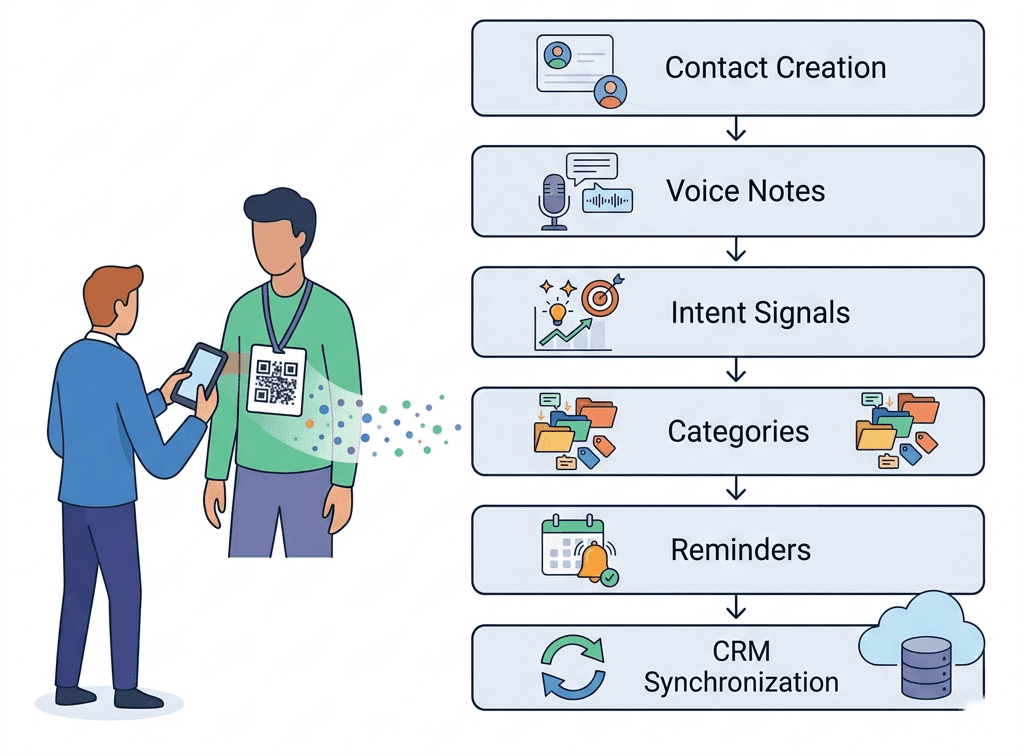
The Habsy app brings together QR scanning, business card capture, NFC, voice notes, contact enrichment, intent signals, categories, and reminders into a single capture workflow. Each feature is designed to work alongside the others so that by the time a contact leaves your booth, the record attached to them is already complete enough to act on.
Here is how the full workflow runs in practice.
Step 1: Capture the contact.
At the booth, you have three capture methods available depending on the situation. Scan the attendee's event badge QR code for an instant record pull. Scan their physical business card using the Habsy app camera if they hand you one. Or tap NFC if both parties are using NFC-enabled devices. Every captured contact lands immediately in your View Cards page with no manual entry.
If you are sharing your own details rather than receiving someone else's, you display your Habsy QR code. The attendee scans it, lands on your live digital card profile, and saves your contact in one tap. On Android devices with NFC enabled, you can also share your digital card phone-to-phone by tapping devices together instead of displaying the QR code, giving you a second sharing method depending on the situation. Your profile is tied to either a Professional or Business digital card. Setting it up requires no manual field entry: go to Settings, select Complete Your Profile, tap Edit Profile, and upload your existing business card. Habsy reads it and populates your profile automatically.
Step 2: Add context immediately while it is fresh.
This is where Habsy separates itself from a basic scanner. The moment after a conversation ends, you can record a voice note directly on the contact record. The note is automatically transcribed and becomes keyword-searchable across your full contact list. That transcript also feeds into Habsy's AI, so it informs how the contact is processed and followed up on later.
Alongside the voice note, you assign intent signals to the record. Intent signals are the qualification markers that tell your team what the contact expressed interest in, where they are in their buying process, or what action they are ready for. You also apply categories to group contacts by type, segment, or any organizational logic your team uses.
All of this happens in seconds at the booth, not in a spreadsheet back at the office.
Step 3: Enrich the contacts that matter.
Not every scan needs a full data pull. Once you are back from the show floor, you review your View Cards and tap to enrich the contacts worth pursuing. A single tap pulls in firmographic data, seniority level, LinkedIn profile, company size, industry, and other professional details that fill the gaps left by badge registration data.
Enrichment is on-demand by design. You choose which contacts get it, which keeps your records clean and your workflow intentional.
Step 4: Set reminders so nothing slips.
For high-priority contacts, you set a follow-up reminder directly on the record using one-tap presets or a custom time and date. Habsy offers two reminder types: a standard reminder that notifies you at the scheduled time, and an alarm-style reminder that fires as a louder, more insistent notification. Both appear in a consolidated view with done controls. No separate task tool needed.
Step 5: Sync to your CRM via the Habsy Platform.
Once the event wraps, everything captured in the app moves to the Habsy Platform, the web dashboard where your team manages contacts, campaigns, and integrations at scale. From there, enriched and categorized contacts sync directly to your CRM of choice, including HubSpot, Salesforce, Zoho CRM, Pipedrive, Outlook, and Nutshell, with all intent signals, voice note transcripts, categories, and enrichment data carried across in full.
The Habsy Platform also handles deduplication, flagging duplicate records for your review before any changes are made. No records are altered without your confirmation.
The result is a pipeline that arrives in your CRM already qualified, already segmented, and already enriched, without a single spreadsheet or manual data entry step in between.
Setting up your Business QR code in the Habsy Business Card Manager app takes a few minutes. Here is the exact flow.
Step 1: Open Habsy Business Card Manager and go to the QR Code section.
From the home screen, tap the QR Code option and select Business QR Code.
Step 2: Enter your company domain.
You will be prompted to enter your company URL. Provide your company domain and Habsy fetches your company details automatically from it.
Step 3: Review, edit, and confirm.
Review the fetched details and make any edits needed. You can also attach a brochure or file at this stage. Once everything looks right, tap Confirm. Your Business QR code is now active and ready to share.
To share it, display the QR from the Digital QR section, or add your Business QR widget to your home screen for faster access. The recipient scans it with their phone camera and your live company profile opens in their browser instantly, no app required on their end. On Android devices with NFC enabled, you can also share phone-to-phone by tapping devices together instead.
Any updates you make to your profile reflect immediately. The QR code itself never changes.
Setting Up the Enquiry Form
Once your Business QR is created, you can configure an enquiry form that recipients fill in when they scan your code. The Configure Enquiry Form option appears directly below the Business QR on the same screen. Tap it to set the fields recipients will see, and assign intent signals to capture structured qualification data at the point of scan.
Two controls worth noting here:
Skip and Continue — When this is on, recipients can access your card without filling in the form. Turn it off if you want every recipient to provide their details before viewing your profile.
Multiple Entries — Toggle this to control whether the same device can submit the enquiry form more than once from a single scan.
The enquiry form is only available after the Business QR profile has been created using the steps above.
A standard QR code encodes static information and delivers it in one direction. A profile-linked business QR code connects to a live profile, supports two-way contact exchange, tracks scan activity, and connects to the tools your sales team already uses.
If you are attending or exhibiting at B2B events, the type of QR code you use is not a technical detail. It is a decision about whether your contact sharing works for you after the event ends.
Set up your Habsy digital card profile and start sharing and scanning at your next event with a QR code built for sales.
Frequently Asked Questions
What is a business QR code?
A business QR code is a dynamic QR code linked to a live digital contact profile. Unlike a standard QR code, it can be updated at any time without regenerating the code, and it is designed for professional contact sharing and lead capture.
What is the difference between a static and dynamic QR code?
A static QR code encodes fixed data at the time of creation and cannot be changed. A dynamic QR code points to a live destination that can be edited. Business QR codes are dynamic by design.
Can I use a standard QR code for networking at events?
A standard QR code can share your contact details, but it cannot be updated, tracked, or connected to a CRM. For event networking and lead capture, a business QR code linked to a digital profile gives you significantly more control and follow-up capability.
How does QR code scanning work in the Habsy app?
In the Habsy app, you can scan an attendee's badge QR code or digital card QR code to instantly create a contact record in your View Cards page. No manual entry is required. The record can then be enriched, categorized, and synced to your CRM via the Habsy Platform.
What is the difference between QR sharing and QR scanning in Habsy?
QR sharing is when you display your own business QR code so others can scan and receive your contact profile. QR scanning is when you use the Habsy app to scan someone else's QR code and capture their details into your own contact list. Both functions are available in the Habsy app.
How do I create a business QR code in the Habsy app?
Open the Habsy Business Card Manager app, tap the QR Code option from the home screen, and select Business QR Code. Enter your company URL and Habsy fetches your company details from the domain automatically. Review and edit the details if needed, attach a brochure or file if relevant, and tap Confirm. Your Business QR code is active immediately.
Can I collect contact details from people who scan my Business QR code?
Yes. Once your Business QR is created, the Configure Enquiry Form option appears directly below the Business QR on the same screen. Tap it to set the fields recipients fill in when they scan your code, and assign intent signals to capture qualification data at the point of scan. You can require every recipient to fill in the form by turning off the Skip and Continue option, and control whether the same device can submit the form more than once using the multiple entries toggle.
Can I share my business QR code using NFC instead of displaying it?
Yes, on Android devices with NFC enabled. Open your digital card profile in Habsy and tap your phone against another NFC-enabled Android device. The recipient receives your contact profile instantly without needing to scan the QR code. The QR code and NFC sharing both link to the same live profile.
Does the Habsy app generate a separate QR code for each digital card profile?
Yes. Habsy gives you two digital card profiles, Professional and Business, each with its own QR code. You can share either profile depending on the context of the conversation. Both QR codes link to live profiles that can be updated at any time without regenerating the code.