How to Organize Business Cards on Your Phone (A System That Lasts)
A drawer of business cards is a list of people you will never call. A phone full of untagged contacts is not much better. This guide gives you a simple system to organize business cards on your phone, so you can find anyone in seconds and remember why they matter.
Marcus Chen5 min read
On this page
- The quick answer
- Why the phone’s contacts app is not enough
- Step 1: Capture every card in one place
- Step 2: Tag by where, what and who
- Step 3: Add one line of context
- Step 4: Set a reminder
- Finding people later
- Clean up duplicates
- Organizing a backlog of old cards
- Example tag schemes
- A ten-minute monthly clean-up
- Back it up
- Bottom line
The quick answer
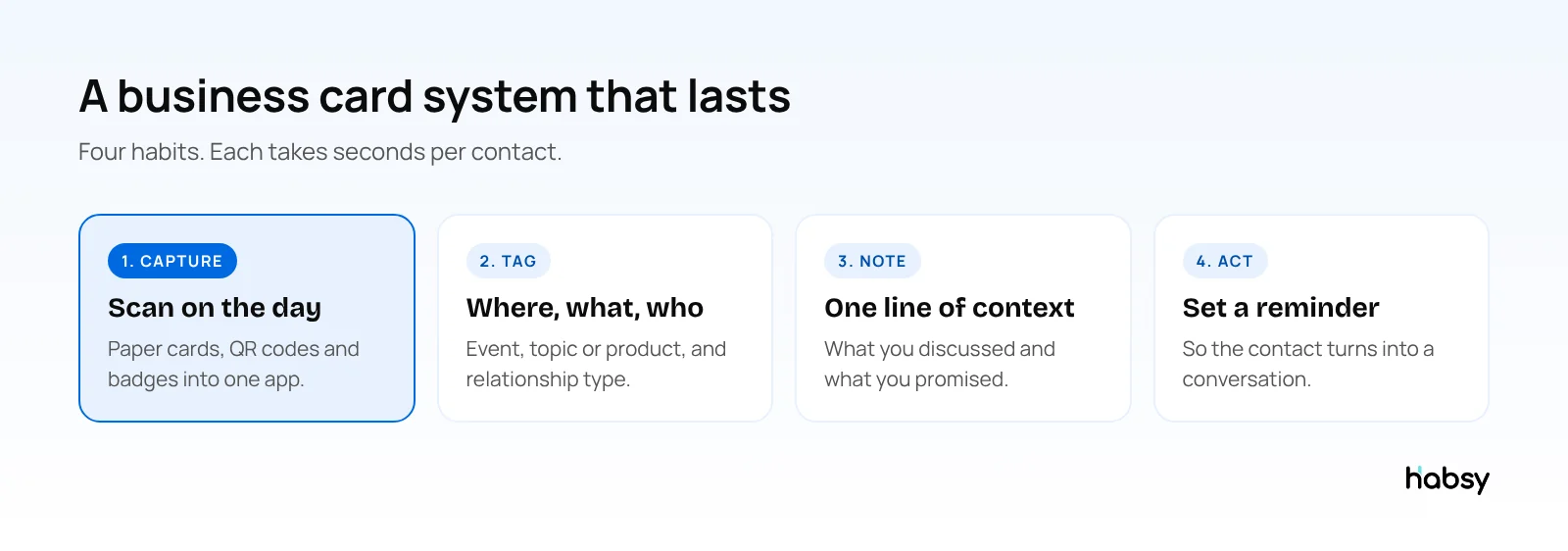
To organize business cards on your phone, scan every card into one business card app on the day you get it, tag it with where you met and what it is about, add a one-line note about the conversation, and set a reminder if you promised to follow up. Then use search and filters to find people in seconds. Habsy does all of this for free.
Why the phone’s contacts app is not enough
Saving a card to your phone contacts is better than a drawer, but it loses most of what matters:
- No context. Where did you meet? What did they need?
- No grouping by event. You cannot pull up everyone from last month’s expo.
- No follow-up. Nothing reminds you to send what you promised.
- Typing errors. Manually typed emails bounce.
A business card app keeps the contact and the context together, and can still sync to Google Contacts or Outlook Contacts if you want them in your phone’s address book too.
Step 1: Capture every card in one place
Use one app for every way people share details:
- Paper cards: Habsy scans with 99% accuracy, the highest in our in-house tests. Add the back of the card if it has more details.
- A stack of cards: batch scan up to 150 in about 5 minutes.
- QR codes: digital cards from any provider, LinkedIn QR codes, and website QR codes with contact details.
- Event badges: QR and NFC.
- Cards in other languages: read and translated into English.
Scan the same day. Context fades fast.
Step 2: Tag by where, what and who
Keep tags simple and consistent. Three kinds cover most needs:
| Tag type | Examples |
|---|---|
| Where | “Expo Delhi 2026”, “Client visit”, “Conference” |
| What | Product line, topic, service |
| Who | Customer, supplier, partner, investor, recruiter |
With Habsy Plus, you can also use categories to group contacts by industry or your own segments.
Step 3: Add one line of context
Every contact should answer “why does this person matter?”. A note such as “Needs 500 units by March, send price list” is enough. With Habsy Plus, record a voice note instead. It is transcribed into English, searchable, and included in exports.
If you sell, add intent signals with Habsy Plus: fields your team defines, such as interest level or timeline. See what are intent signals.
Put the guide into practice
Turn every event conversation into a follow-up.
Capture accurate contact details, add the context that matters and stay ready for the follow-up.
Step 4: Set a reminder
Once you save a contact, add a reminder, for example “Tomorrow 10:00”. When it comes up, Habsy can write a personal email or WhatsApp message with AI from a short prompt. See one-tap follow-up reminders.
Finding people later
With a tagged, noted list, finding someone takes seconds:
- Search by name, company, role, tag or custom field
- With Habsy Plus, search voice note transcripts, for the word you remember saying
- Use advanced filters to pull everyone from one event, or everyone tagged as a supplier
Clean up duplicates
You will meet some people more than once. Habsy flags possible duplicates when you save, and lets you choose what to do with each, so your list stays clean without anything being merged behind your back.
Organizing a backlog of old cards
If you have a drawer of old visiting cards:
- Sort them into piles by year or event, roughly.
- Batch scan each pile and tag the batch.
- Review the fields, especially emails and phone numbers.
- Recycle the paper.
- Delete contacts you will never need.
For more on why this matters, read why networking is more about memory than contact storage.
Example tag schemes
Different people need different structures. Pick the one closest to you and keep it simple.
| You are | Where | What | Who |
|---|---|---|---|
| A salesperson | Event or city | Product line | Prospect, customer, partner |
| A founder | Event or intro source | Topic, such as hiring or fundraising | Investor, customer, advisor, candidate |
| A student or job seeker | Job fair or meetup | Company or role | Recruiter, alumni, mentor |
| An exhibitor team | Event and day | Product line | Buyer, distributor, competitor, press |
A ten-minute monthly clean-up
- Filter contacts added this month without a note, and add one line to the ones that matter.
- Check open reminders and close or reschedule them.
- Resolve any duplicates Habsy flagged.
- Export a backup to Excel or CSV if you like keeping one.
- Delete contacts you know you will never need.
Ten minutes a month keeps the list useful for years.
Back it up
Your contacts should never be locked in one app. Habsy exports to Excel, CSV or VCF at any time, for free, and with Habsy Plus syncs to Google Contacts, Outlook Contacts and 10+ CRMs.
Bottom line
Organizing business cards on your phone takes four habits: capture on the day, tag, add one line of context, and set a reminder. Habsy makes each one take seconds, and it is free. Try the business card scanner.
Frequently Asked Questions
What is the best way to organize business cards?
Scan them into a business card app on your phone, add a tag for where you met and a short note about what you discussed, then use search and filters to find people later. Recycle the paper once the details are checked.
Can I just save business cards to my phone contacts?
You can, but the phone’s contacts app has no place for where you met, what you discussed or when to follow up, and no easy way to filter by event. A business card app keeps that context and can still sync to Google or Outlook Contacts.
How do I organize visiting cards I already have?
Batch scan them. Habsy scans up to 150 cards in about 5 minutes. Then tag each batch with the event or year, review the fields and recycle the paper.
How do I find a contact when I only remember the company or topic?
Search by company, role, tag or custom field in Habsy. With Habsy Plus, voice note transcripts are searchable too, so you can search for a word you said in the note.
Is it safe to keep business cards in an app?
Choose an app that encrypts data and does not sell it. Habsy encrypts data in transit and at rest, has no ads and does not sell your data.
Put the guide into practice
Turn every event conversation into a follow-up.
Capture accurate contact details, add the context that matters and stay ready for the follow-up.