

SFF 2026 Badge Scanning and Lead Capture: A Guide for Exhibitors and Visitors
SFF 2026 (Singapore FinTech Festival) takes place November 18 to 20, 2026 at Singapore EXPO in Singapore, bringing the fintech industry together. Here is how to use Habsy to share your details, capture every contact you make, and turn those conversations into follow-ups after the show, whether you are visiting or exhibiting.
Claire Bennett11 min read
SFF 2026 at a glance
- Dates
- November 18 to 20, 2026Wednesday to Friday
- Exhibition hours
- Daily 10:00 AM to 6:00 PMNovember 18 to 20, 2026
- Venue
- Singapore Expo, Singapore1 Expo Drive, Singapore 486150
- Entry
- Free Trade Visitor Pass; paid optionsRegister online; access varies by pass category
- Official website
- fintechfestival.sgConfirm details before you travel
Who exhibits and who attends SFF 2026?
SFF 2026 brings fintech startups, banks and technology providers together with financial institutions, regulators, investors and enterprise buyers.
Who exhibits
- FinTech startups
- Banks and financial institutions
- Financial technology companies
- Financial technology consultancies
- Payment providers and platforms
Who attends
- Financial institution executives
- Regulators and policymakers
- FinTech founders and startups
- Investors and venture capitalists
- Technology providers and researchers
How to prepare for SFF 2026 with Habsy
Most of the work happens before you reach Singapore. Set up Habsy once and every conversation at the show ends with a saved contact, the context you need and a next step.
If you are visiting
Before you fly
- 1
Create your Professional digital card
Share your details by QR code, NFC or link instead of paper cards.
- 2
Add your Business digital card
Your company profile and brochures, for partners and suppliers you meet.
- 3
Create a SFF 2026 category
Plus the visitor intent signals below, to sort vendors by fit later.
- 4
Turn on Send my digital card back
Everyone you scan gets your card automatically.
If you are exhibiting
Before you fly, for every rep
- 1
Install Habsy on every rep's phone
Give each rep a digital card, plus one Business digital card for the company.
- 2
Set up intent signals and templates
Every rep qualifies and follows up the same way, by email or WhatsApp.
- 3
Add an enquiry form to your card
Print its QR code on the booth so visitors leave details when you are busy.
- 4
Create a SFF 2026 campaign
Bringing several reps? Every scan lands in one live list.
How to set up Habsy before SFF 2026
Five steps, in the order the app walks you through them. Visitors need steps 1 to 3. Exhibitors should do all five.
1. Create your digital business cards
Every Habsy account includes two free digital cards under MyQR: a Professional digital card for you and a Business digital card for your company, with your services and brochures. Habsy's AI builds them from your LinkedIn profile and website, or from a photo of your own business card. Share them by QR code, NFC or link. The person you share with opens your card in their browser, with no app needed, and saves your contact in one tap. Add an enquiry form so visitors who scan your card leave their details and are saved as a new contact.

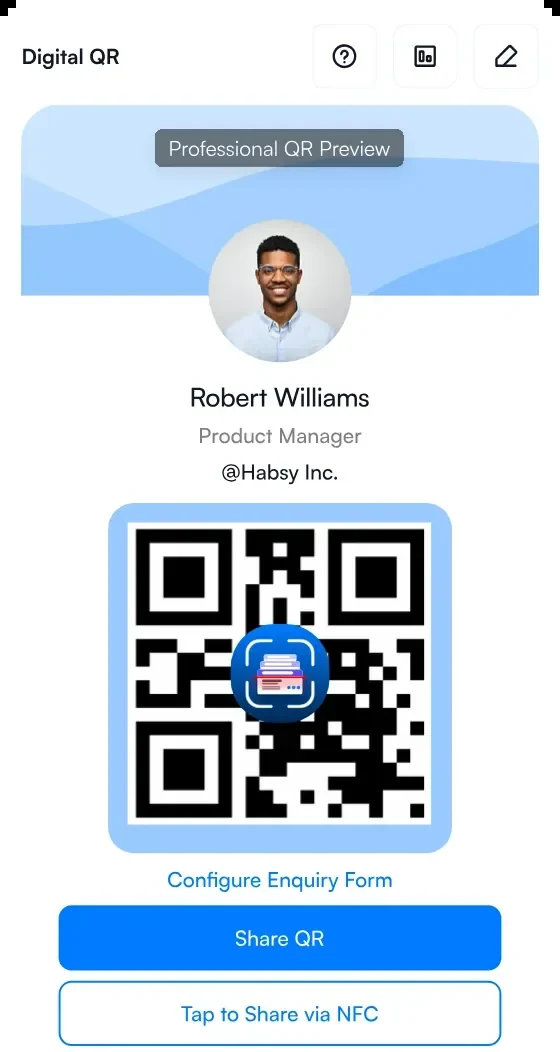
1Your Professional digital card
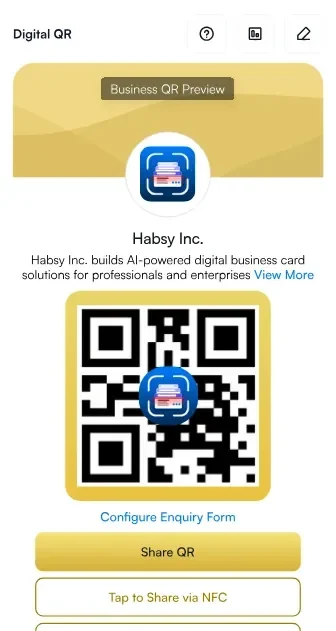
2Your Business digital card
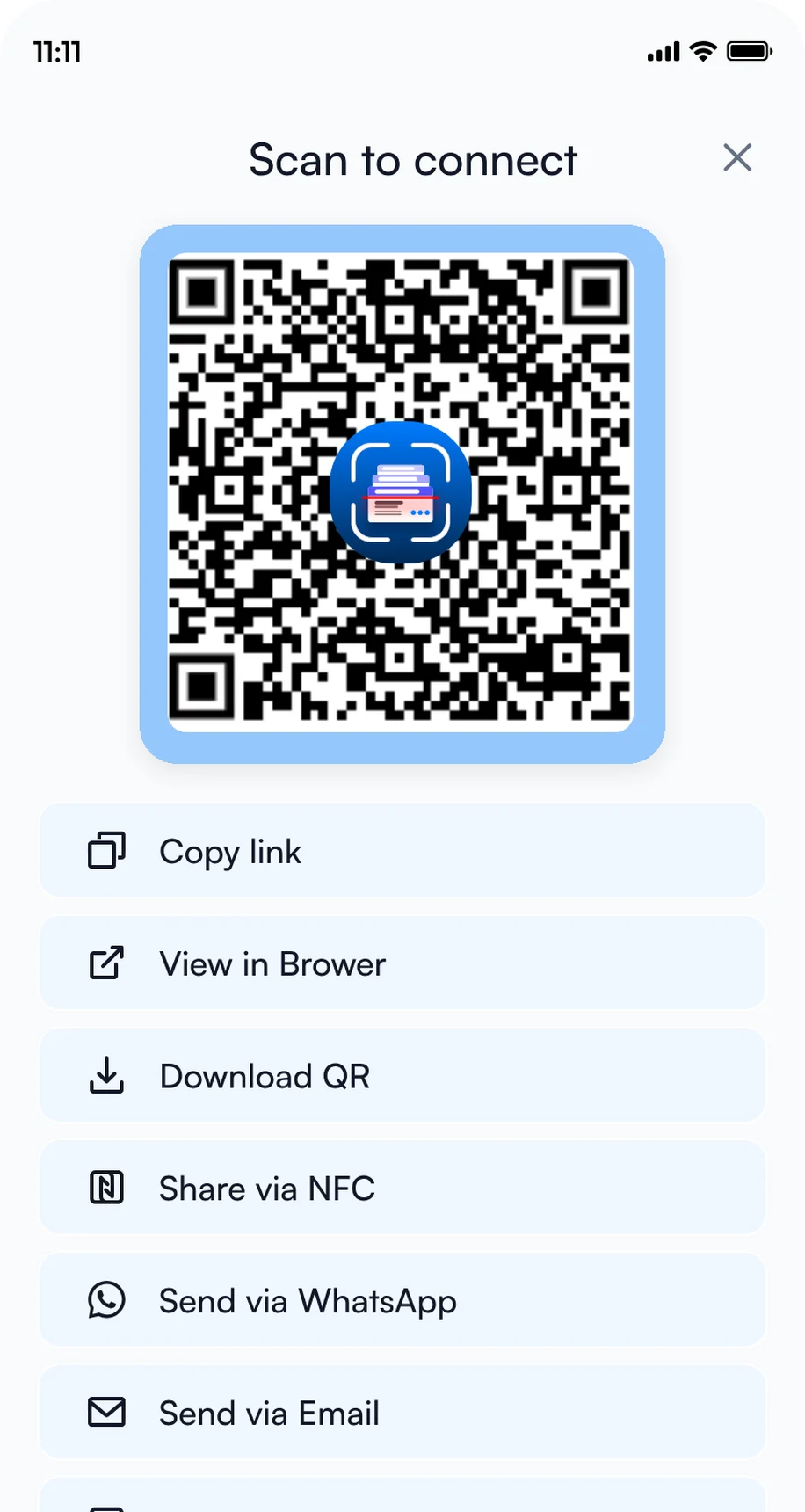
3Share by QR code, NFC or link
2. Add intent signals
Intent signals are tap-to-answer questions you fill in for every contact, so every rep records the same details in seconds. In Settings, open Manage Intent Signals, then tap Create with AI to get suggestions from your website, or Create Manually to add the set below.
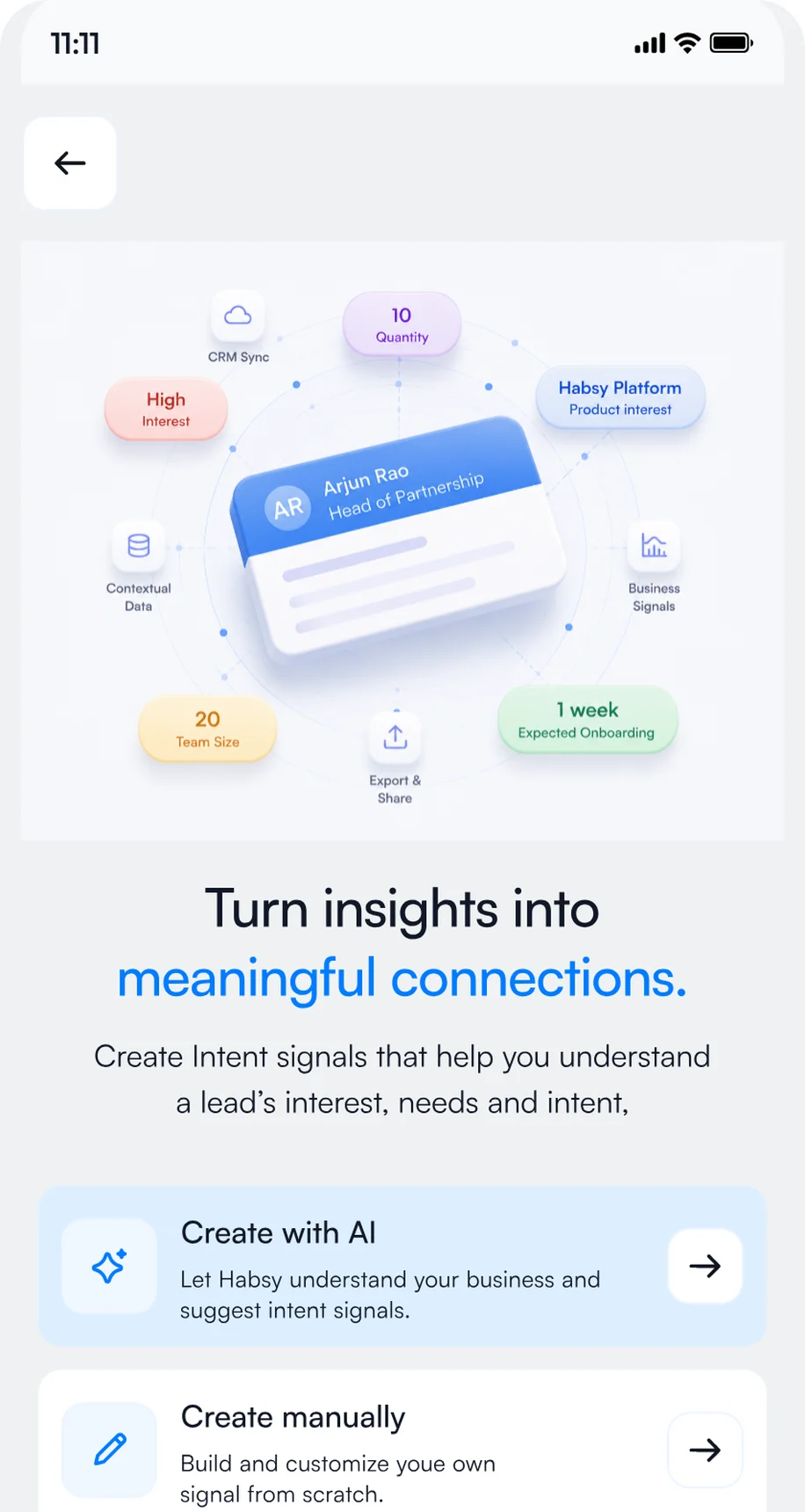
1Open Manage Intent Signals
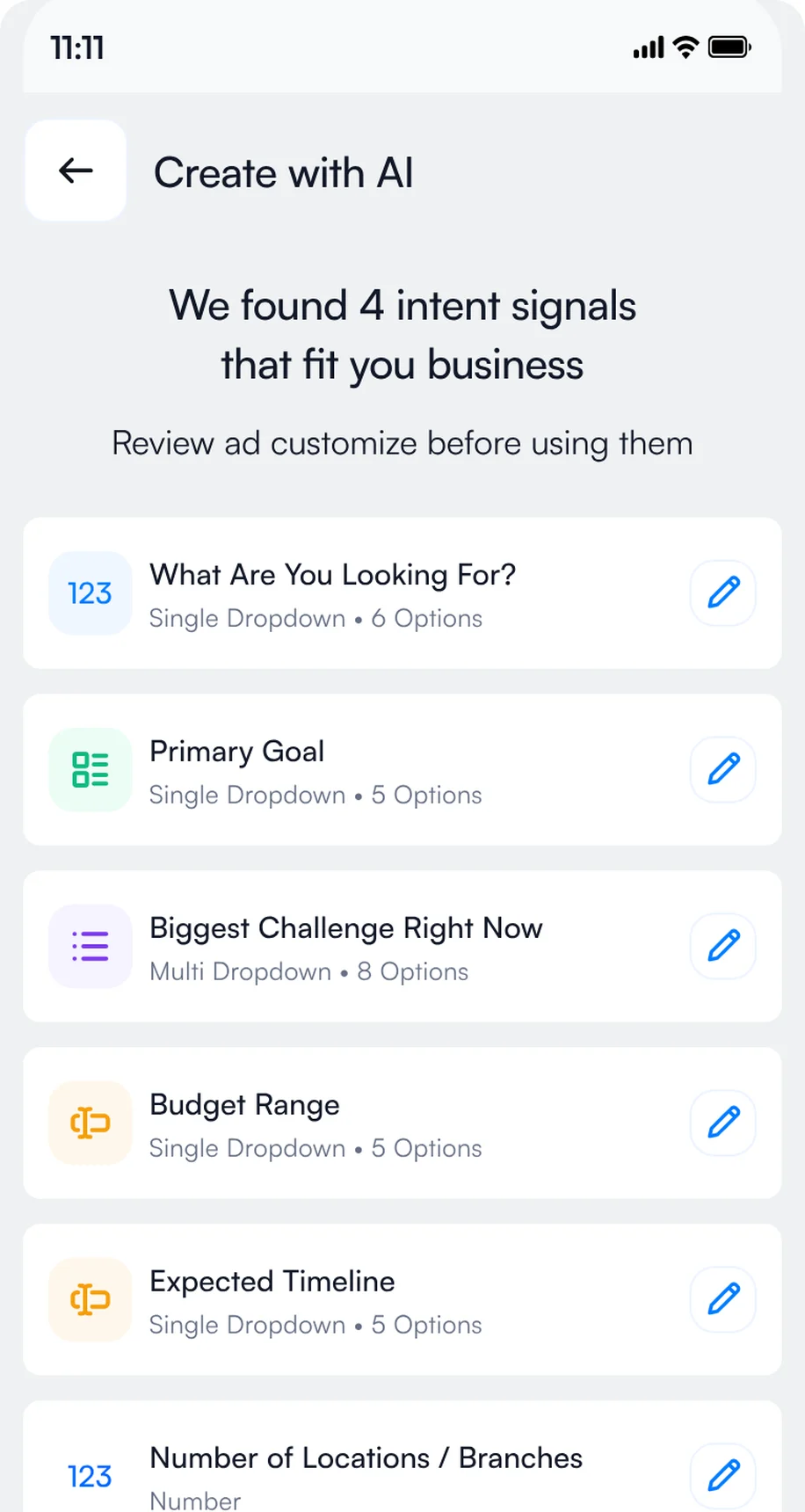
2Review the signals Habsy suggests
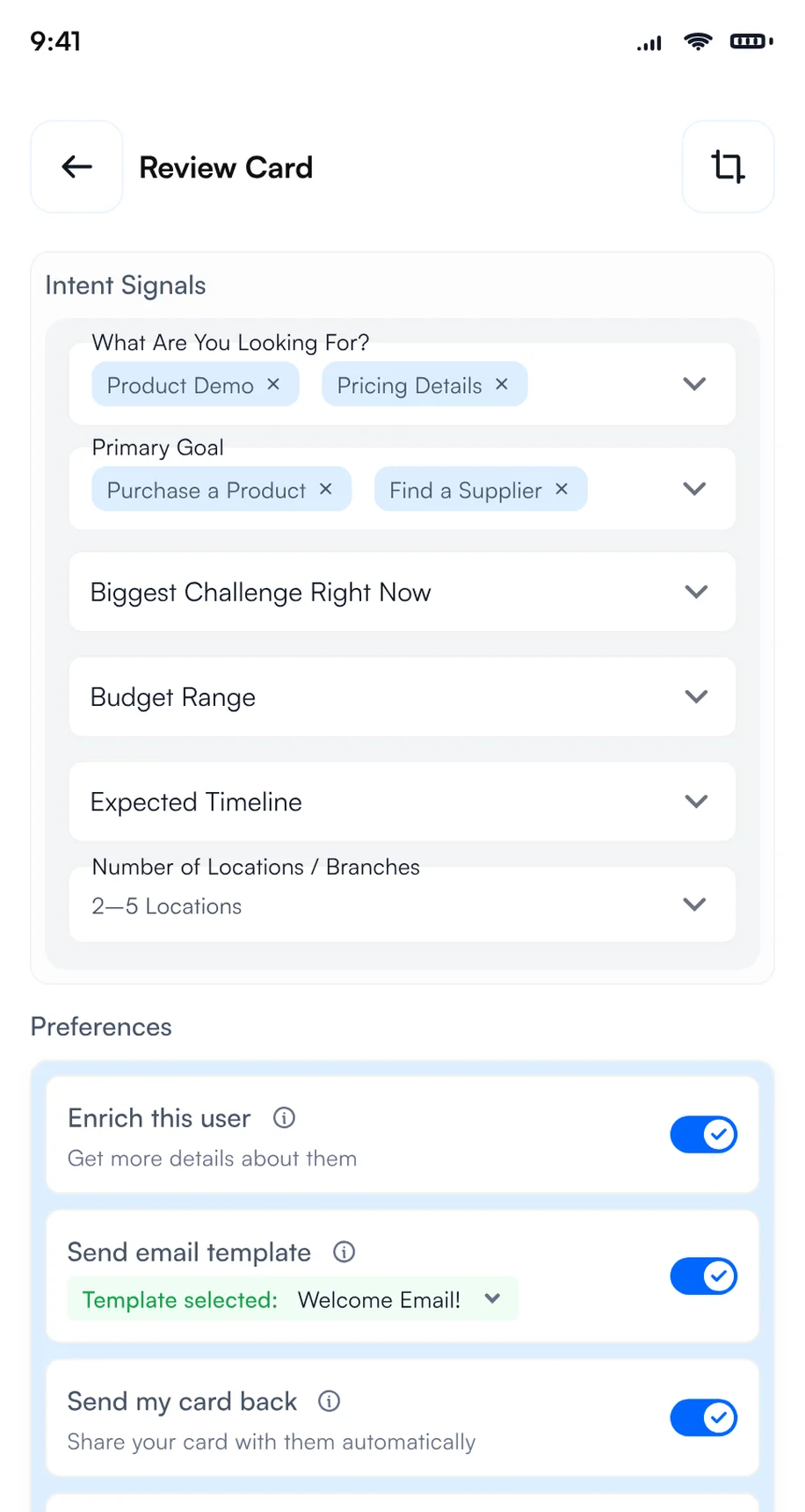
3Tap the answers after each scan
- Bank or financial institution
- Regulator or government agency
- FinTech company
- Investor
- Partner
- Finance executive
- Regulator or policymaker
- FinTech founder
- Investor or venture capitalist
- Digital banking
- Payment systems
- Blockchain and crypto
- RegTech and compliance
- AI in finance
- Within 3 months
- 3 to 6 months
- 6 to 12 months
- Researching
- Book a demo
- Send a proposal
- Share a case study
- Introduce a colleague
- Digital banking
- Payments
- Blockchain and crypto
- RegTech
- InsurTech
- Wealth management
- Exhibit hall booth
- Session or reception
- Strong fit
- Possible fit
- Not a fit
- Book a demo
- Request pricing
- Share with my team
- No follow-up
Add them in Settings, Manage Intent Signals, with Create Manually, or start with Create with AI and adjust the options to match what you sell or what you are looking for.
3. Create a SFF 2026 category
Create a category called SFF 2026 and set it as your default for the days of the event, so every contact you scan at the show is filed under it automatically. After the show, use it as a filter to export only your SFF 2026 contacts to Excel, CSV or VCF in one step. Exhibitors on Habsy Platform can also use the SFF 2026 category to track how the event performed: contacts captured, companies reached, intent signals and each rep's results.
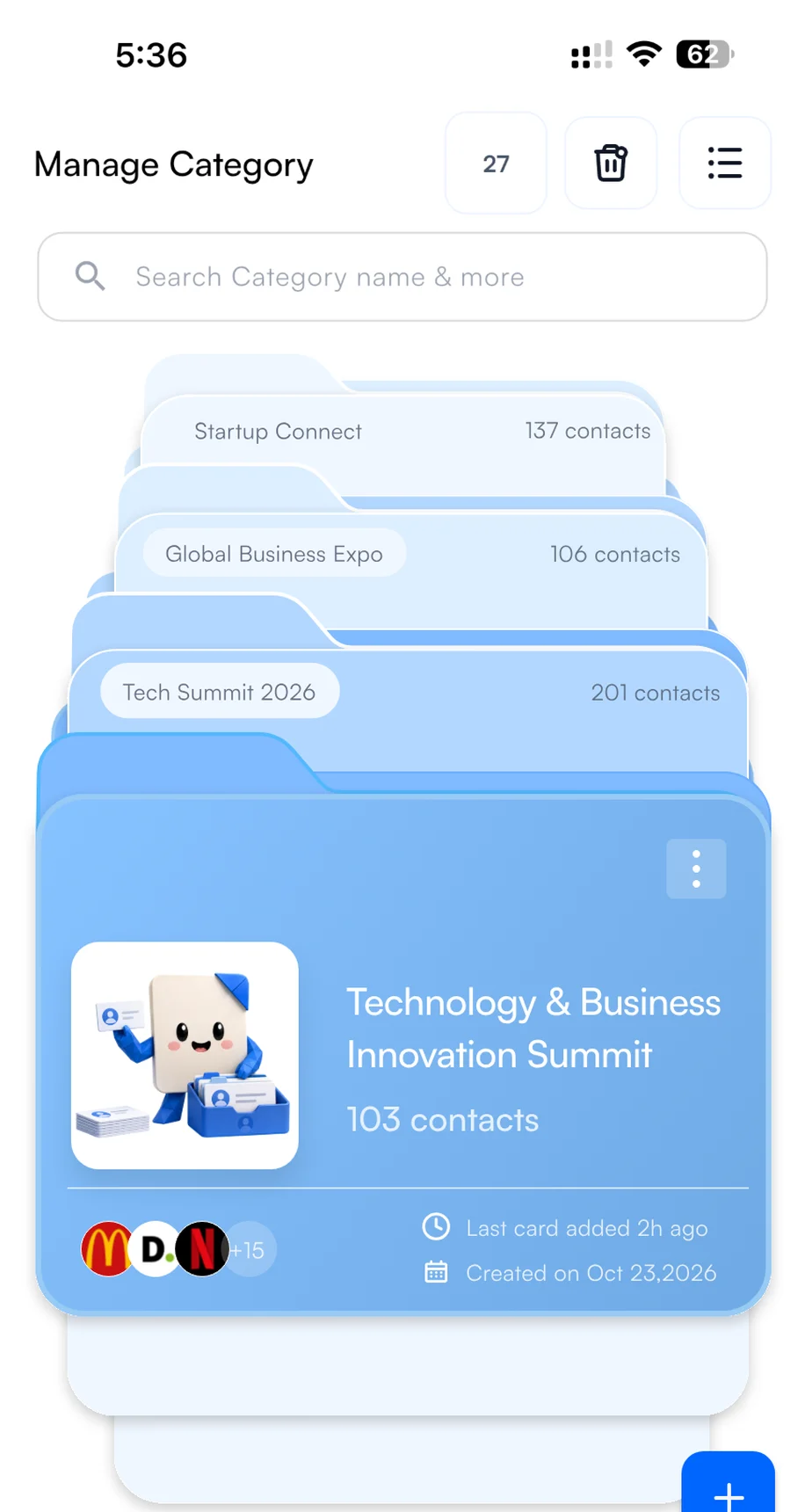
1Create the category
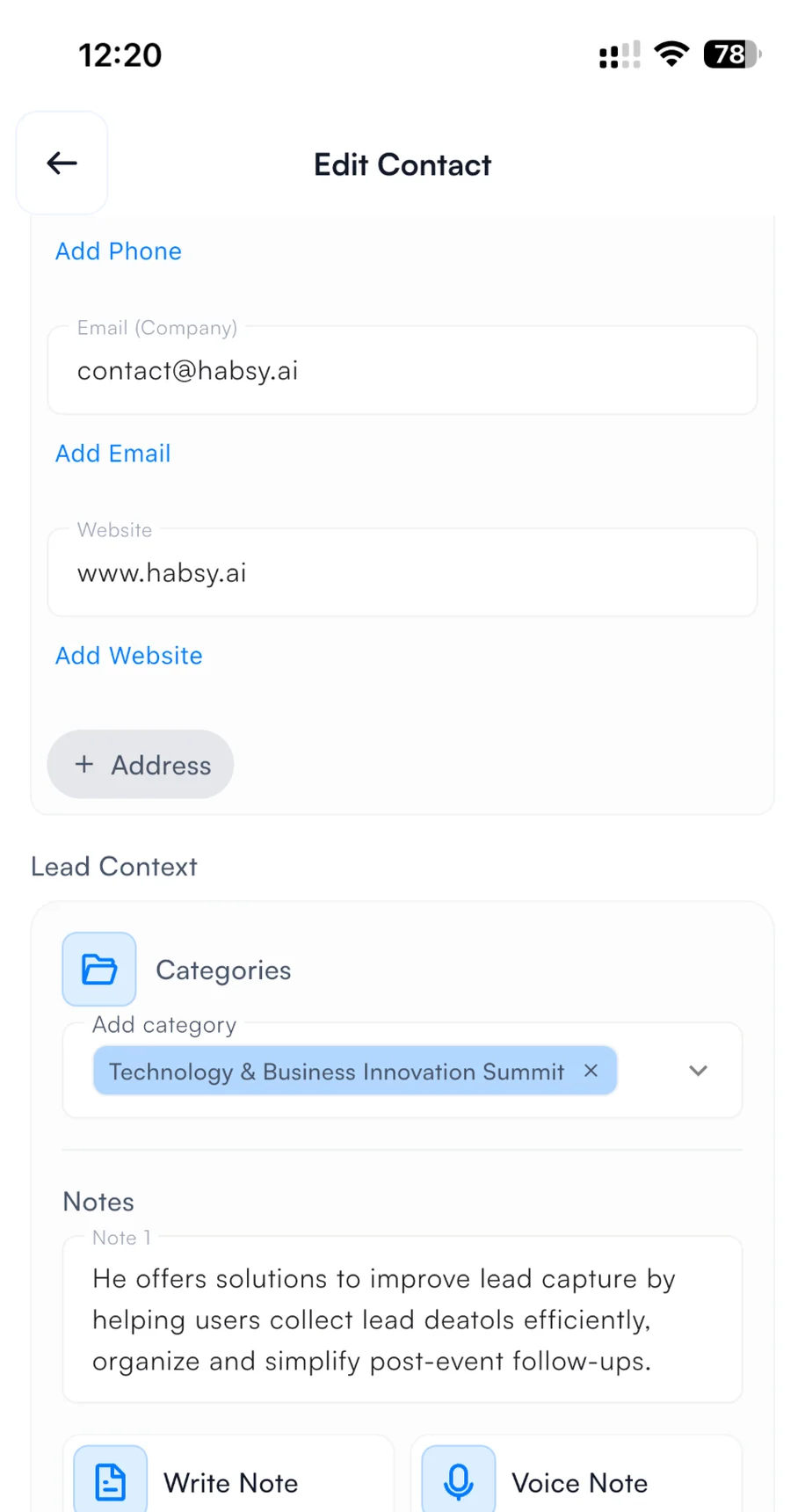
2Pick it when you save a contact
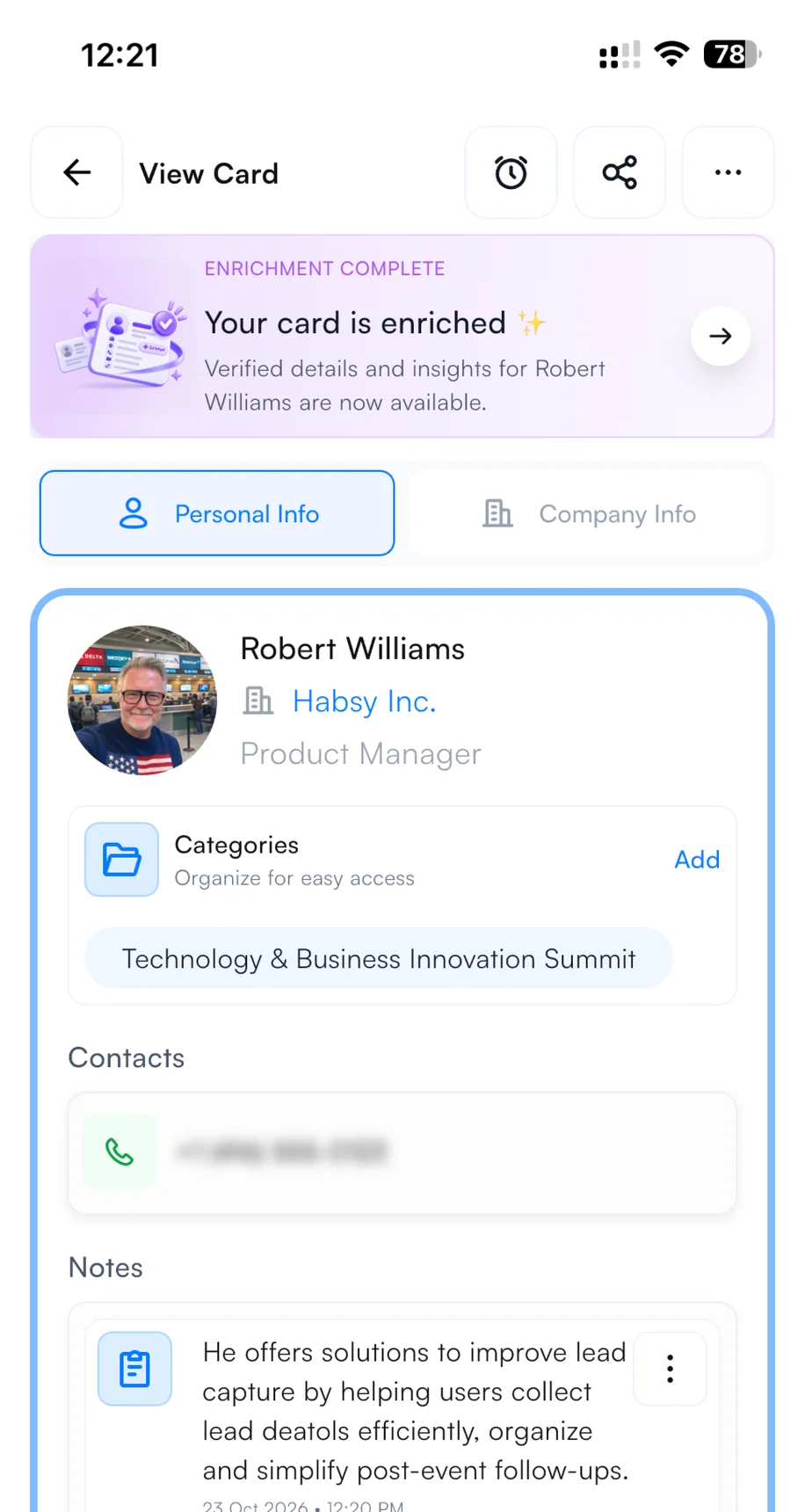
3Find it on every contact
4. Set up your email and WhatsApp templates
Connect your email account or WhatsApp Business account in Settings before the show. Then, with Send email or WhatsApp template turned on in your Card Preferences, your follow-up goes out from your own account the moment you save a scanned contact. The visitor often has your message, and your digital card, before they leave your booth. It shows you are organized and quick to respond, and it puts you ahead of every exhibitor who follows up next week. To write the template, open Email Templates or WhatsApp Templates in Settings, describe the message, and Habsy's AI writes it. Add variables such as the contact's name and company so every message is personal. Here is a template you can copy for SFF 2026:
{{recipient.name}}Hi {{recipient.name}},
Thank you for stopping by our booth at SFF 2026 in Singapore. It was good to hear what {{recipient.company}} is working on.
As promised, here is a short overview and a link to book a 30-minute demo at a time that suits you: [your link]
Best regards,{{user.name}}{{user.designation}}, {{user.company}}
Hi {{recipient.name}}, this is {{user.name}} from {{user.company}}. Great meeting you at SFF 2026 in Singapore.
As promised, here is the link to book a short demo: [your link]. Happy to answer any questions here.
Words in braces are variables. Habsy fills them in from each contact and from your profile when you send.
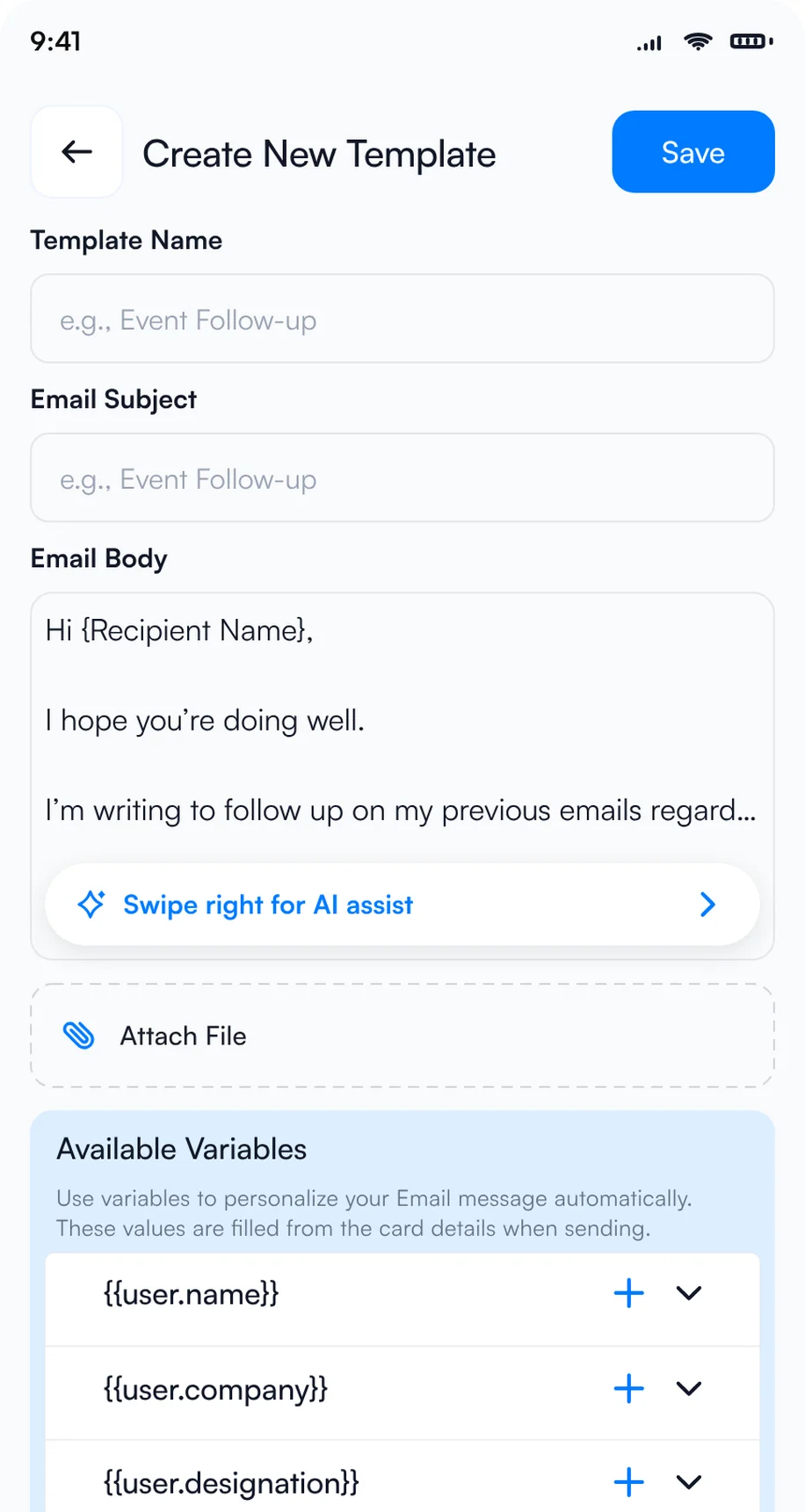
1Let AI write the template
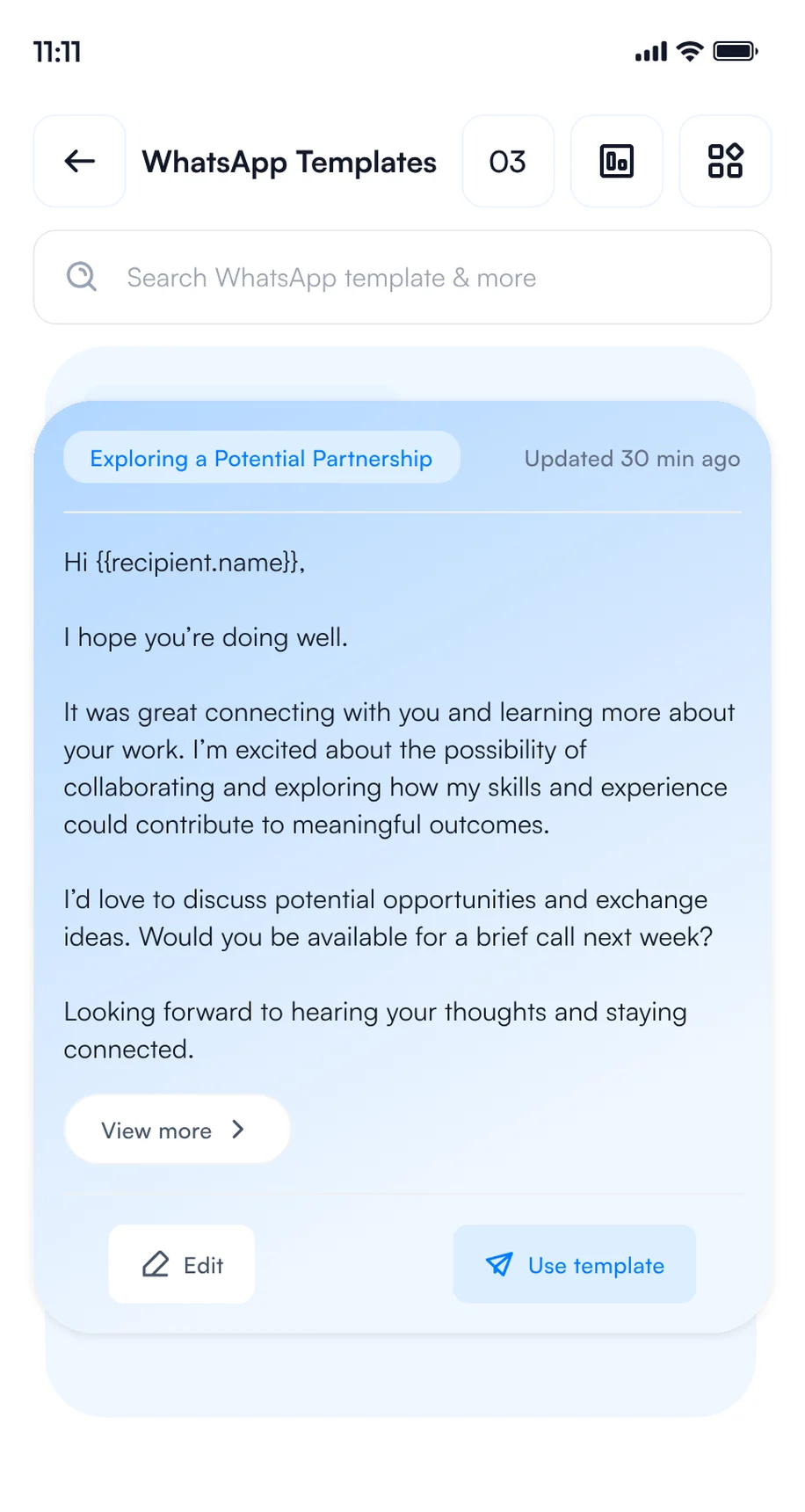
2Save your WhatsApp templates
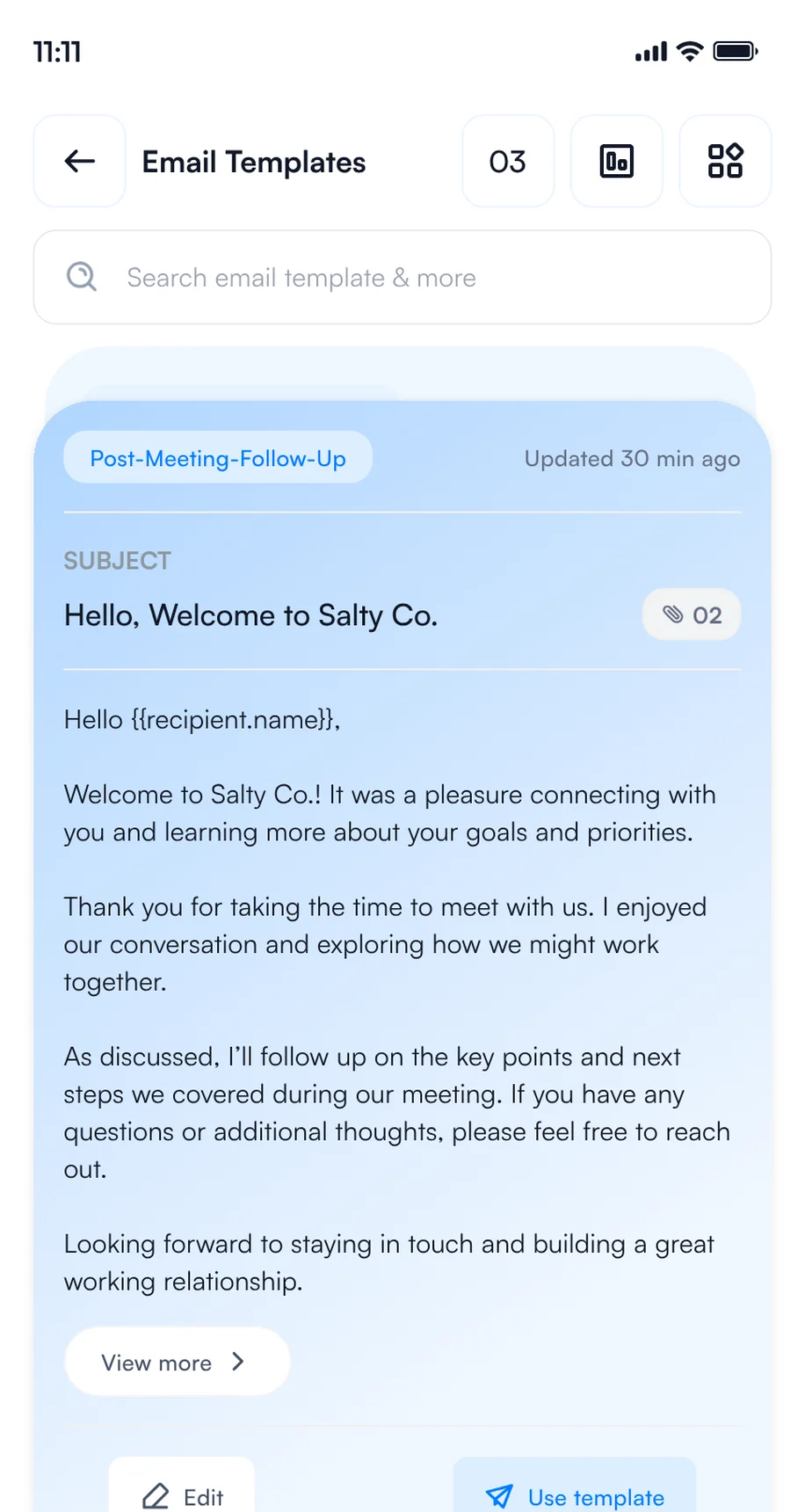
3Save your email templates
5. Set your Card Preferences
Choose what Habsy does each time you save a contact, once in Settings or per save. It runs in the background while you move on to the next conversation.
Maya Tan saved at SFF 2026 · 4 steps running in the background
Email, WhatsApp and CRM steps need the matching integration.
How to capture every contact at SFF 2026
Use one app for every contact you make, wherever you make it: at the booth, in a session, at a reception or over dinner. Every rep and every visitor captures contacts on their own phone, free and with no scan limit, and every contact lands in one list with your category, intent signals and notes.
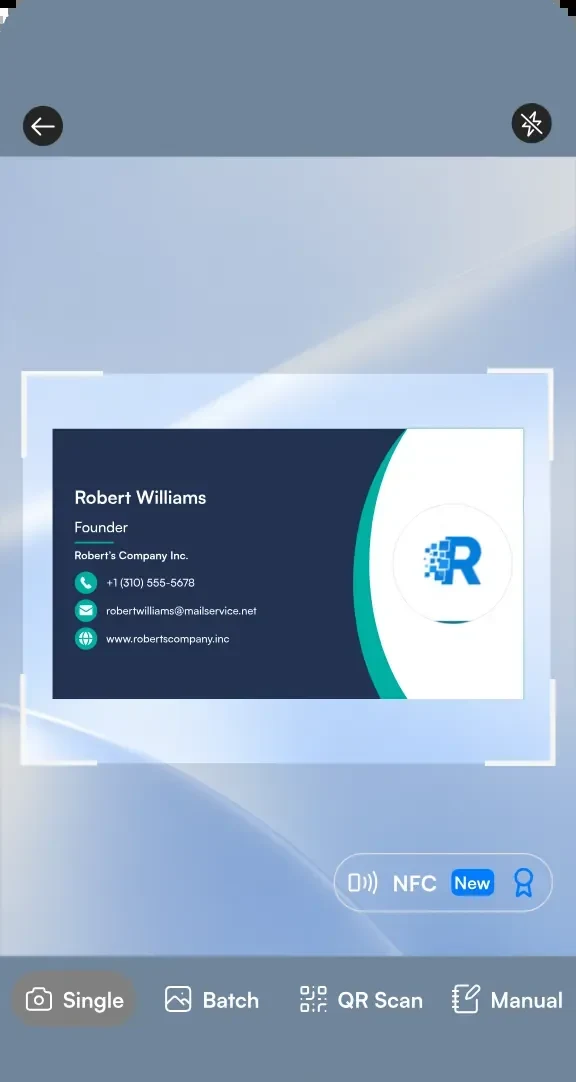
1Scan a business card
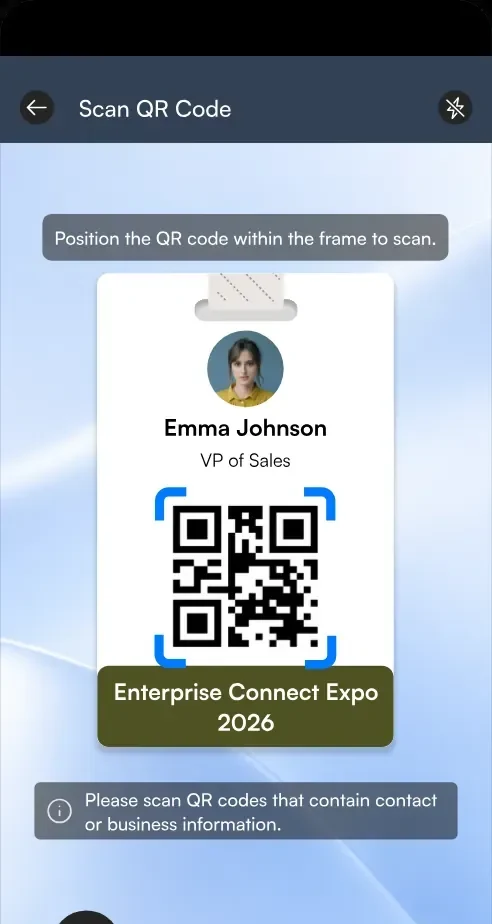
2Scan a badge QR code
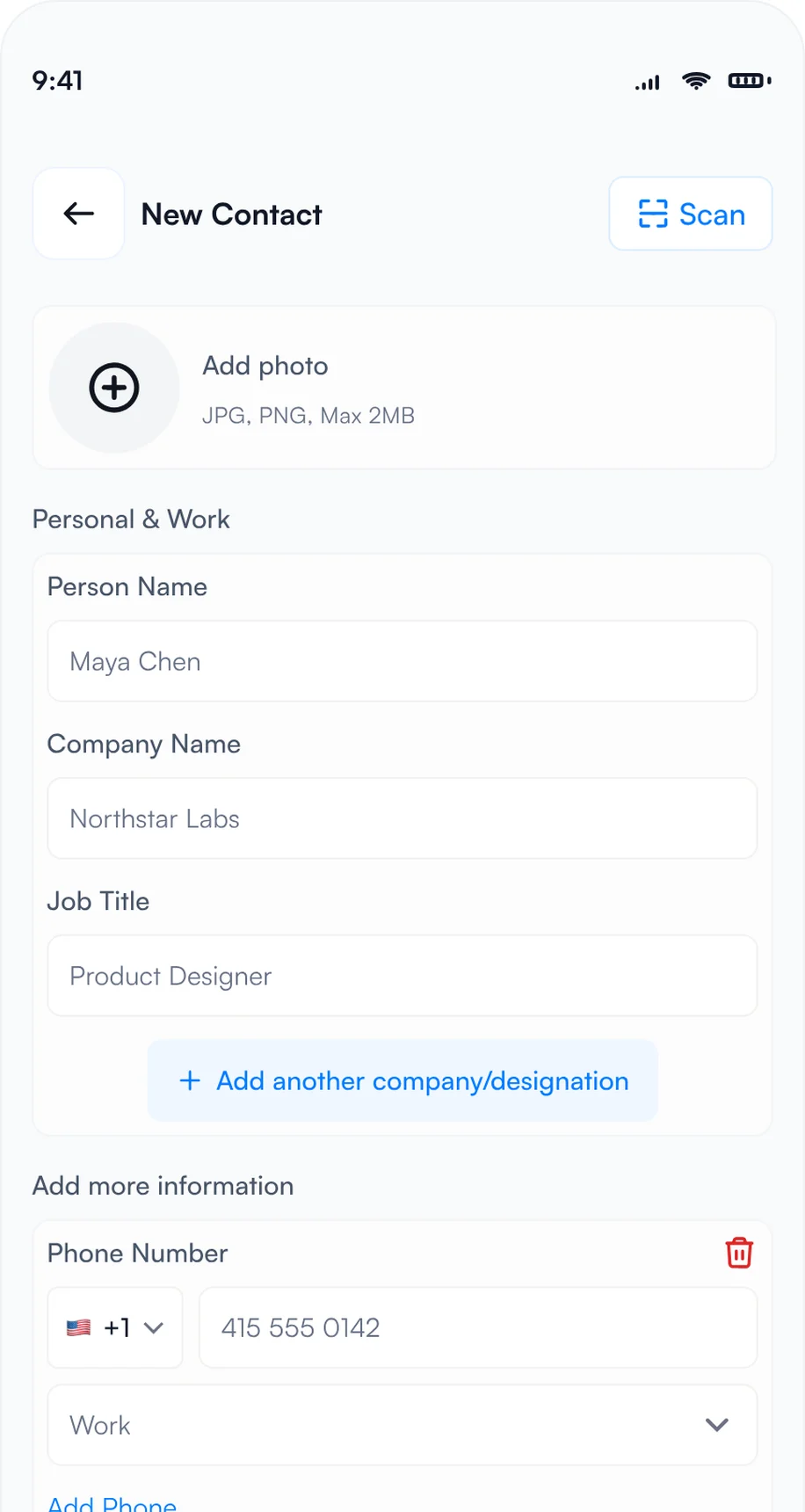
3Type it in with manual entry
- Badges: point the Habsy scanner at a badge and Habsy reads the attendee's details from its QR code. If a badge holds only a registration number, scan the person's business card or type them in.
- Business cards: scan each card in seconds, or switch to Batch and scan up to 150 cards in about 5 minutes without leaving the camera. Habsy reads cards in 200+ languages.
- QR codes: scan digital business cards from any provider, LinkedIn QR codes and contact QR codes.
- NFC: turn on NFC on the scan screen, then hold an NFC business card or an NFC event badge to the back of your phone. Habsy reads the contact and saves it, with no camera needed.
- Manual entry: no card and no QR code? Choose Manual and type the details in.
- Offline: capture continues when the hall Wi-Fi is busy, and contacts process once you reconnect.
Many shows also sell official lead retrieval through the organizer. Habsy works on its own or next to it. For more, read lead capture vs lead retrieval.
How to add context while you talk
A contact without context is hard to follow up. Before the next conversation starts, add what you discussed and what you promised.
- Intent signals: tap the answers on the review screen after each scan.
- Voice notes: tap Add Voice Note and say what they need. Habsy turns it into a searchable transcript.
- Text notes: type a quick note, such as "Comparing payment platforms for digital banking".
- Reminders: in 1 hour, in 4 hours, tomorrow at 9 AM or any date and time, with a repeat and an alarm. All of them appear in My reminders.
Here is what a contact from SFF 2026 looks like with context added:
Maya Tan
Finance Executive, Brightpath Payments
Intent signals
- Bank or financial institution
- Finance executive
- Digital banking
- Payment systems
- 3 to 6 months
- Book a demo
Notes
Exploring payment systems for a planned digital banking service; wants a technical overview.
0:42 · "We are comparing payment systems and need to understand the integration requirements."
Reminder
Monday, 9:00 AM · Send a technical overview
Example contact, captured at SFF 2026 on Wednesday, November 18, 2026, Singapore Expo, Singapore
Going to SFF 2026?
Your digital card and lead capture in one app.
Free, unlimited scanning on your own phone, with notes, reminders and follow-up built in.
What to do in Habsy after SFF 2026
The show ends on Friday, November 20. What you do in the next 48 hours decides how many of those conversations turn into meetings, partners or deals.
If you visited: pick up the conversations you started
- See who looked at your card: open QR analytics to see how many people viewed and saved your digital card, how they engaged and where.
- Save and call back: save vendors to your phone contacts, and set a reminder to call back the ones you want to hear more from.
- Drop a message: Habsy writes a short email or WhatsApp message for any contact, mentioning where you met.
- Export and share: export your SFF 2026 category to Excel, CSV or VCF, by date range, with a copy sent to your email, and share the shortlist with your team.
Top locations
Example numbers.
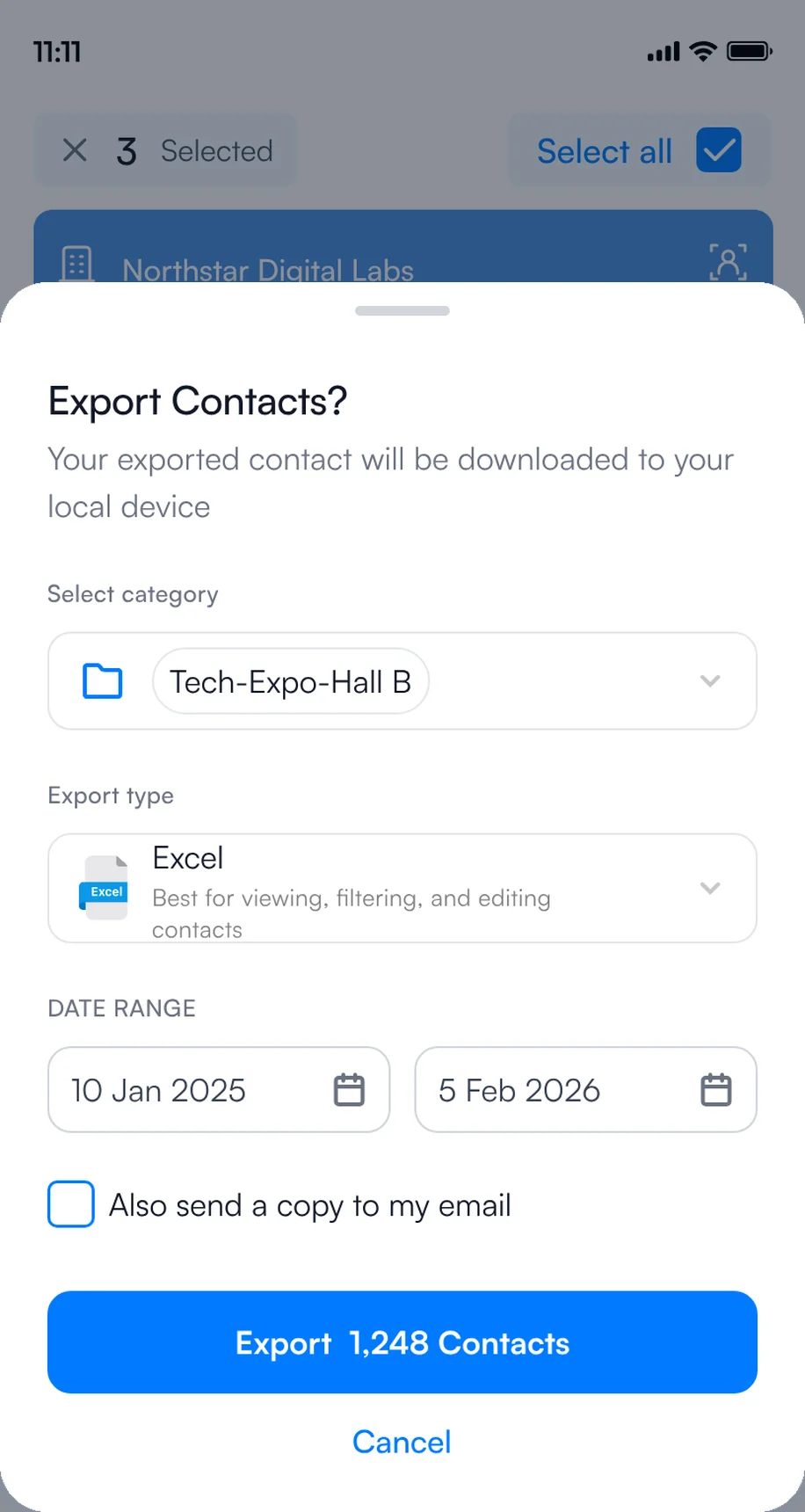
1Export to Excel, CSV or VCF
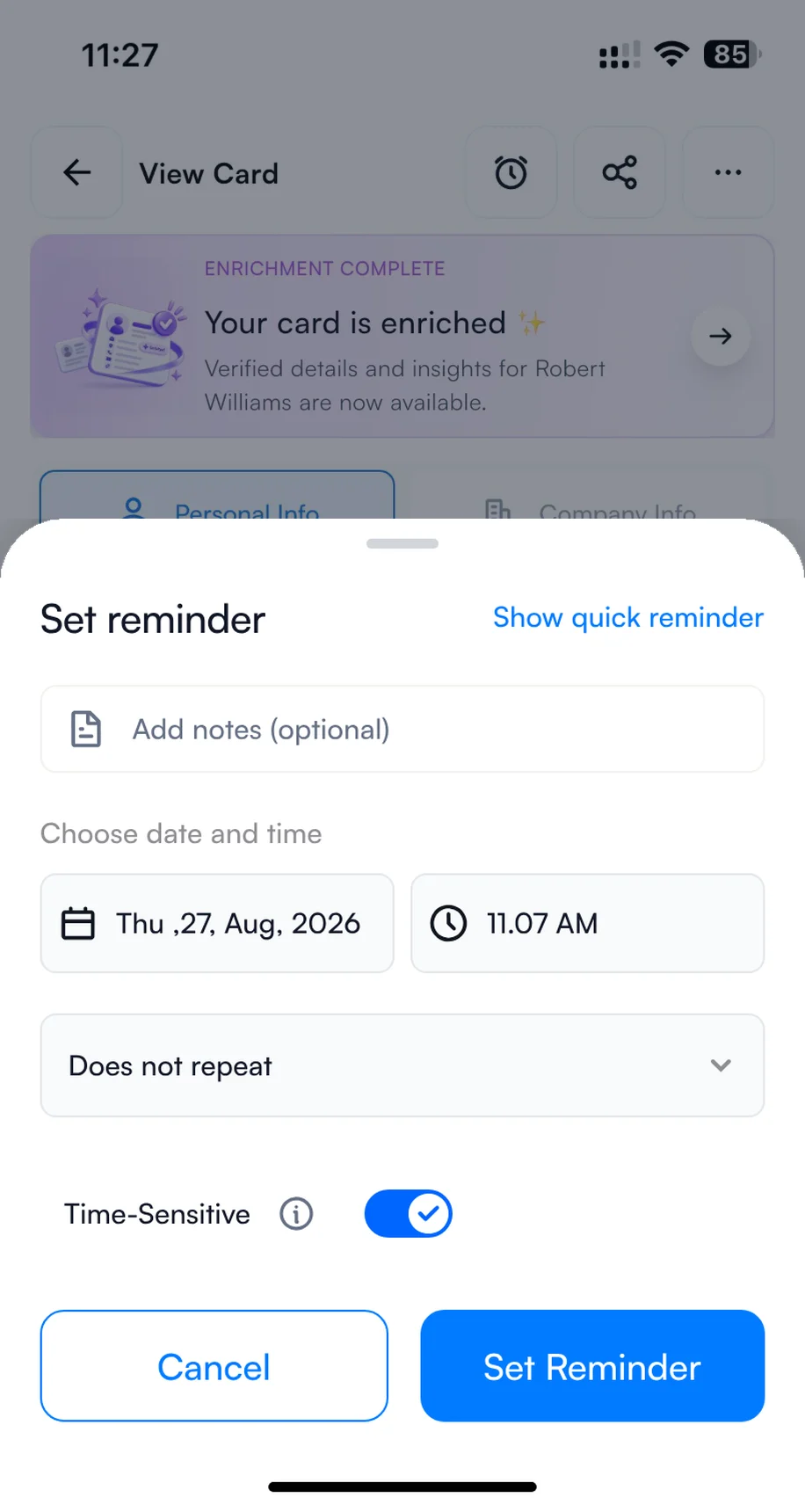
2Set a reminder to call back
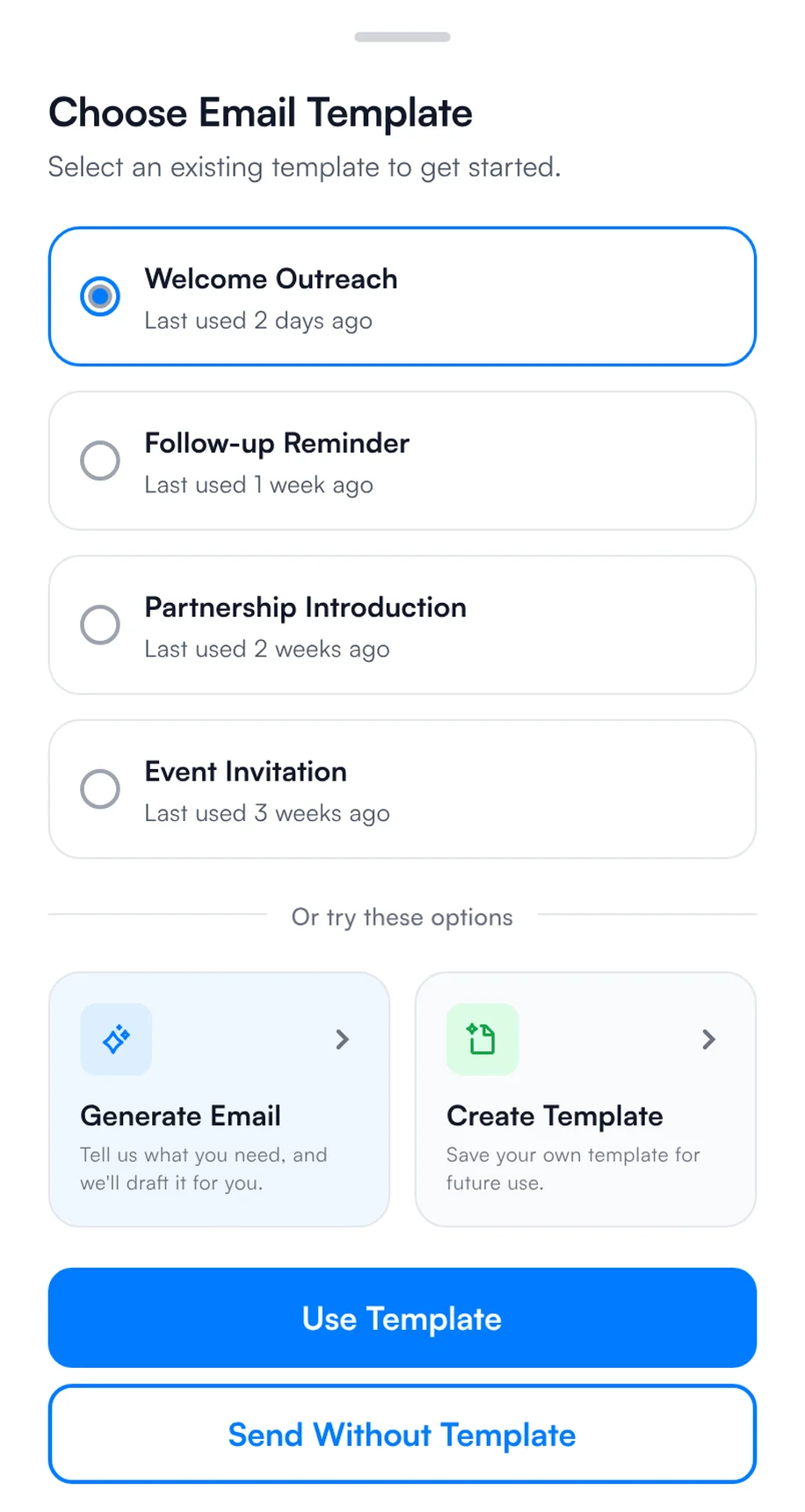
3Send a quick message
If you exhibited: follow up within 48 hours
- Friday evening: batch scan any cards left in your pockets and check that every contact has a note.
- Monday: filter by intent signals, such as "Book a demo" and "Within 3 months", and send your SFF 2026 template to the hottest contacts first.
- Send at scale: select several contacts on the home screen, choose email or WhatsApp and a template, and send to all of them.
- Next week: work through the rest by reminder, sync qualified contacts to your CRM, and export the list to Excel, CSV or VCF.
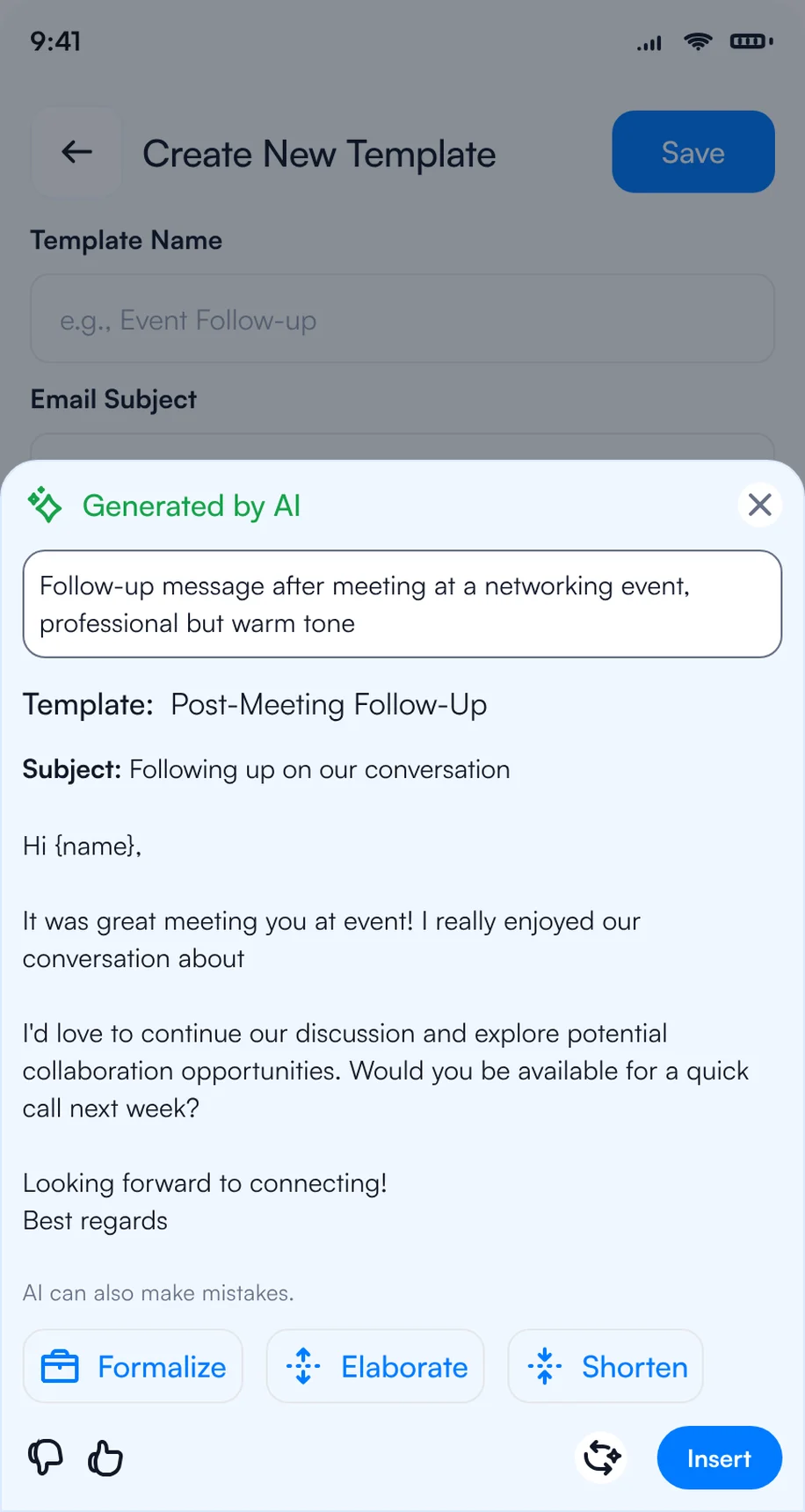
1Write the follow-up with AI
2Pick a template for each contact
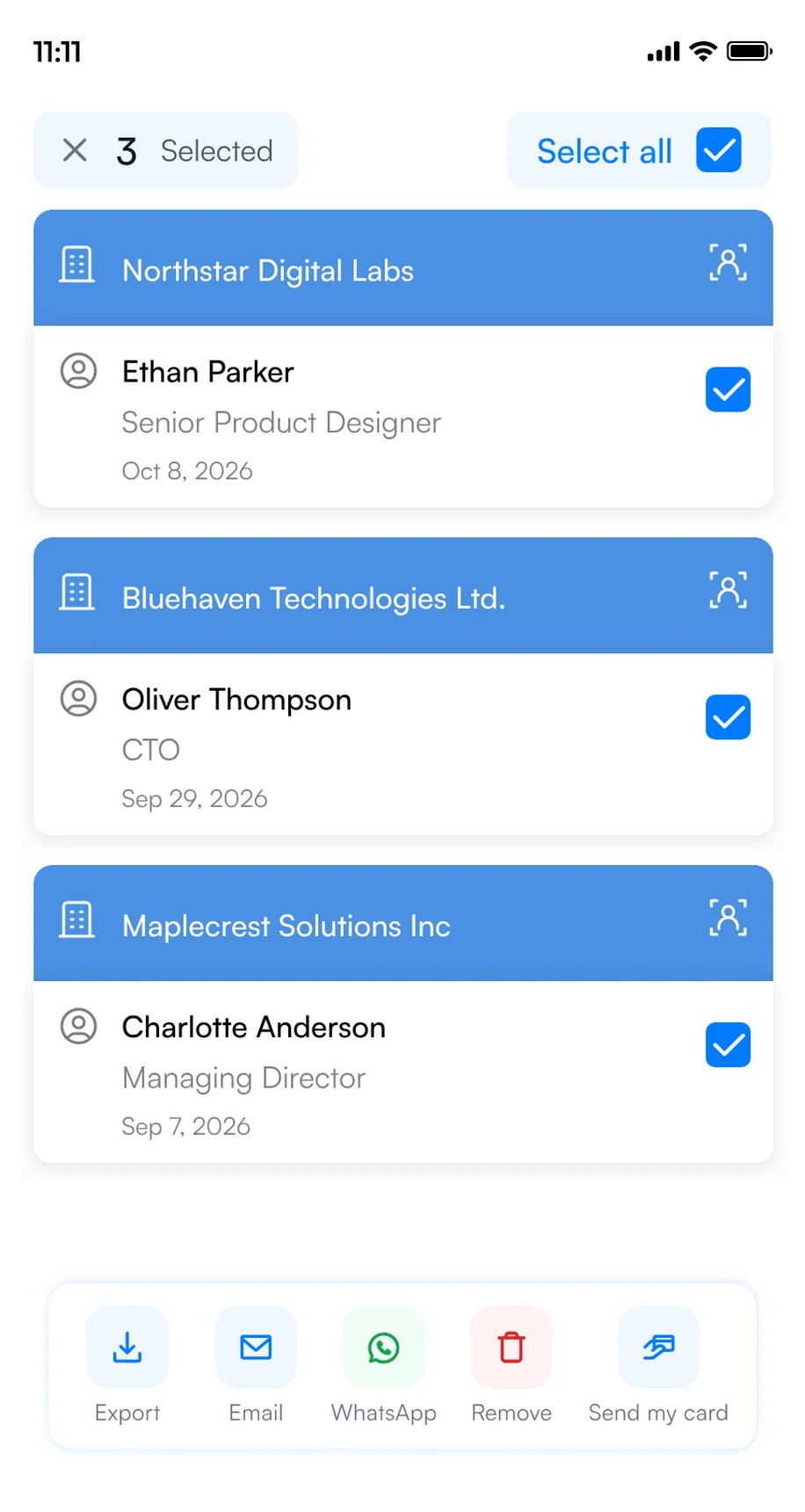
3Select several contacts and send
For more message ideas, see our follow-up email templates.
Exhibiting with a team? Run SFF 2026 on Habsy Platform
When several reps work the booth, the hard part is not capturing leads. It is knowing, during the show and after it, who met whom, who is hot and who follows up. Habsy Platform is the web dashboard for that, at app.habsy.ai. Reps keep scanning in the app, and the manager sees everything in one place.
app.habsy.ai
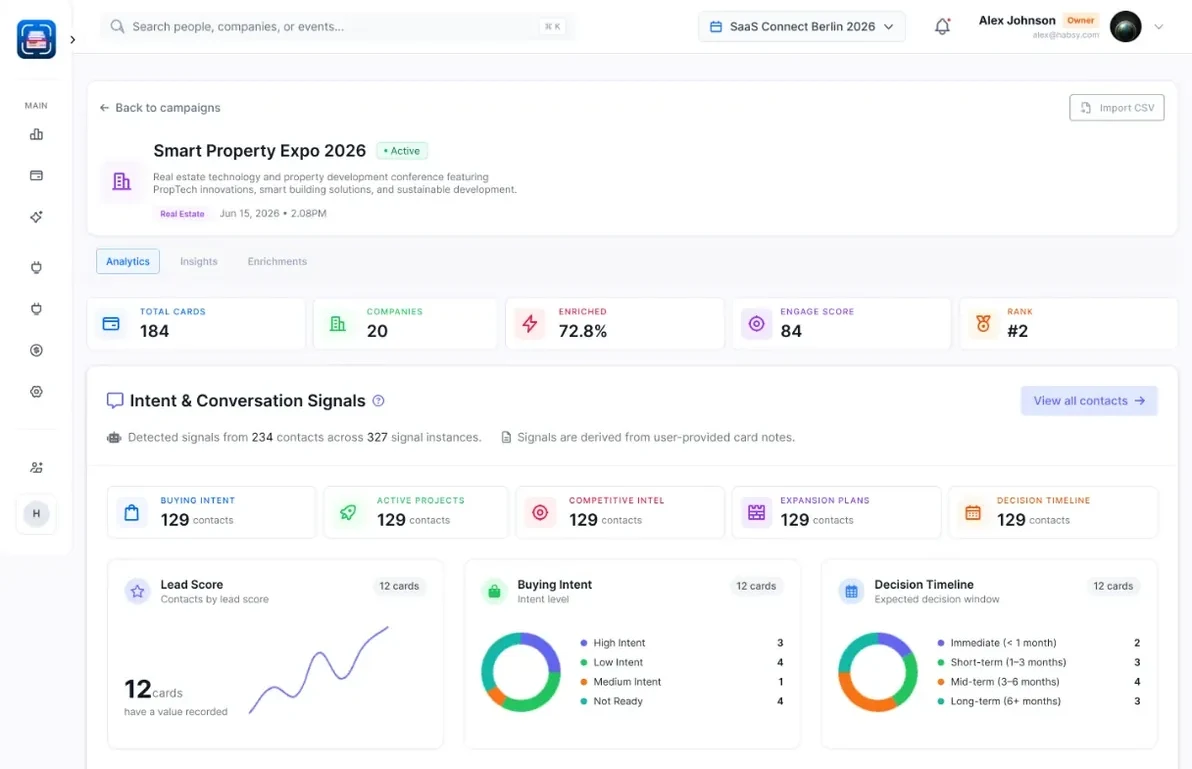
- One campaign for SFF 2026: every rep's contacts land in one live list, by rep and by day.
- Clear ownership: assign contacts, set reminders, and get alerts when two reps meet the same person.
- Follow-up from one place: sync to your CRM and run email sequences, WhatsApp and LinkedIn outreach for the whole team.
The SFF 2026 post-event report
When the show ends, Habsy turns your SFF 2026 contacts into a post-event report: what your team captured, who you met, what they told you through your intent signals, and a dossier on every company with how well it fits your business. Use it to decide who to call first and whether the next edition is worth the booth. Here is what it could look like for SFF 2026, with example data:
Post-event report · SFF 2026
Overview: what your team captured at SFF 2026, how complete it is, and what stands out.
Analytics: the kinds of organizations and the seniority of the people your team met at SFF 2026.
Intent signals: what contacts at SFF 2026 are interested in, when they plan to buy and the next step your reps agreed.
Habsy Platform has one team price, with no per-event or per-lead fees. See Habsy for teams or explore the platform.
Bottom line
SFF 2026 brings fintech companies, financial institutions and technology providers together with industry professionals for three exhibition days. Visitors: create your digital card and scan every card and badge you collect. Exhibitors: set up intent signals and templates before you fly, capture every contact in one app, and follow up within 48 hours. See event lead capture with Habsy.
Bringing a team to SFF 2026 and other events this year? See how Habsy works for sales teams, or book a demo of Habsy Platform.
Habsy is not affiliated with Monetary Authority of Singapore or Global Finance & Technology Network. Event details come from the official SFF 2026 website and can change.
Keywords
- SFF 2026
- Singapore FinTech Festival
- Singapore FinTech Festival Singapore
- SFF 2026 dates
- SFF 2026 exhibition hours
- Singapore Expo
- fintech trade show 2026
- SFF lead capture
- SFF lead retrieval
- SFF badge scanning
- event badge scanner app
- business card scanner app
- digital business card
- trade show lead capture
- event lead capture app
- intent signals
- trade show follow-up
- post-event report
Frequently Asked Questions
When and where is SFF 2026?
SFF 2026 takes place November 18 to 20, 2026 at Singapore EXPO, 1 Expo Drive, Singapore 486150.
What are the SFF 2026 exhibition hours?
The exhibition is open from 10:00 AM to 6:00 PM daily, Wednesday, November 18 to Friday, November 20, 2026.
What is the best app for visitors at SFF 2026?
Habsy. Create a free digital business card to share your details by QR code, NFC or link, scan the business cards and badges you collect, and export them or follow up after the show.
What is the best app for exhibitors at SFF 2026?
Habsy. Every rep scans badges, business cards and QR codes on their own phone, free and with no scan limit, and tags each contact with intent signals, notes and reminders. Follow up the same day with email and WhatsApp templates, sync to your CRM, and with Habsy Platform see every rep's contacts in one live list and a post-event report.
What is the best way to capture leads at SFF 2026?
Use one app for badges, business cards and QR codes so every contact lands in one list. Habsy does all three on your own phone, free and with no scan limit, and lets you add intent signals, a note and a reminder while you talk.
Can I scan SFF 2026 badges with my phone?
Yes. Habsy scans event badges on your own iPhone or Android phone and reads the attendee's details from the QR code. If a badge holds only a registration number, scan the person's business card or type them in.
How do I set up intent signals for SFF 2026?
In Habsy, open Settings, then Manage Intent Signals, and tap Create with AI or Create Manually. Add signals such as organization type, interest, buying timeline and next step. They then appear after every scan.
How do I follow up after SFF 2026?
Within 48 hours. Filter contacts by intent signals, then send an email or WhatsApp template to the hottest contacts first, or select several contacts and send to all of them.
Can my whole booth team use Habsy at SFF 2026?
Yes. Every rep scans in the Habsy app on their own phone, and with Habsy Platform the manager sees every rep's contacts for SFF 2026 in one live list, assigns follow-up, syncs to the CRM and gets a post-event report. Habsy Platform has one team price, with no per-event or per-lead fees.
Going to SFF 2026?
Capture every contact you make in Singapore.
Share your digital card, scan badges, business cards and QR codes, and follow up while conversations are fresh.