QR Codes for Networking: How to Share and Capture Contacts Faster
A QR code is the fastest way to swap contact details in person. But it only works if it goes both ways: they scan yours, and you capture theirs. This guide covers where to put your networking QR code, how to scan other people’s, and the details that make it work.
Amélie Tremblay6 min read
The quick answer
To network with QR codes, share a digital business card through its QR code so people can save your details in one tap, and scan other people’s QR codes into a contact app so you can follow up with them. Habsy does both for free: you get two digital cards with their own QR codes, and a scanner that reads digital cards from any provider, LinkedIn QR codes and event badges.
Why QR codes work for networking
- Every phone can read them. The built-in camera on iPhone and Android opens a QR code without an app.
- No typing. Nobody misspells your email.
- Always current. A QR code that points to a digital card shows your latest details, even after you change jobs.
- Works at a distance. You can show a QR code on a slide to a whole room.
For background on how this replaced paper, see how QR codes are changing business card sharing.
Part 1: Sharing your QR code
Link it to a digital card
Your QR code should open a page, not download a file. A digital business card page shows your name, role, company, phone, email and links, and has a button to save your contact. Because you can edit the page, the QR code never needs to change. See what is a digital business card.
Habsy gives you two digital cards on the free plan:
- A Professional digital card for networking as yourself
- A Business digital card for your company, which can include brochures and other files
Each has its own QR code and link, and with Habsy Plus, an enquiry form.
Where to put your networking QR code
| Place | Why it works |
|---|---|
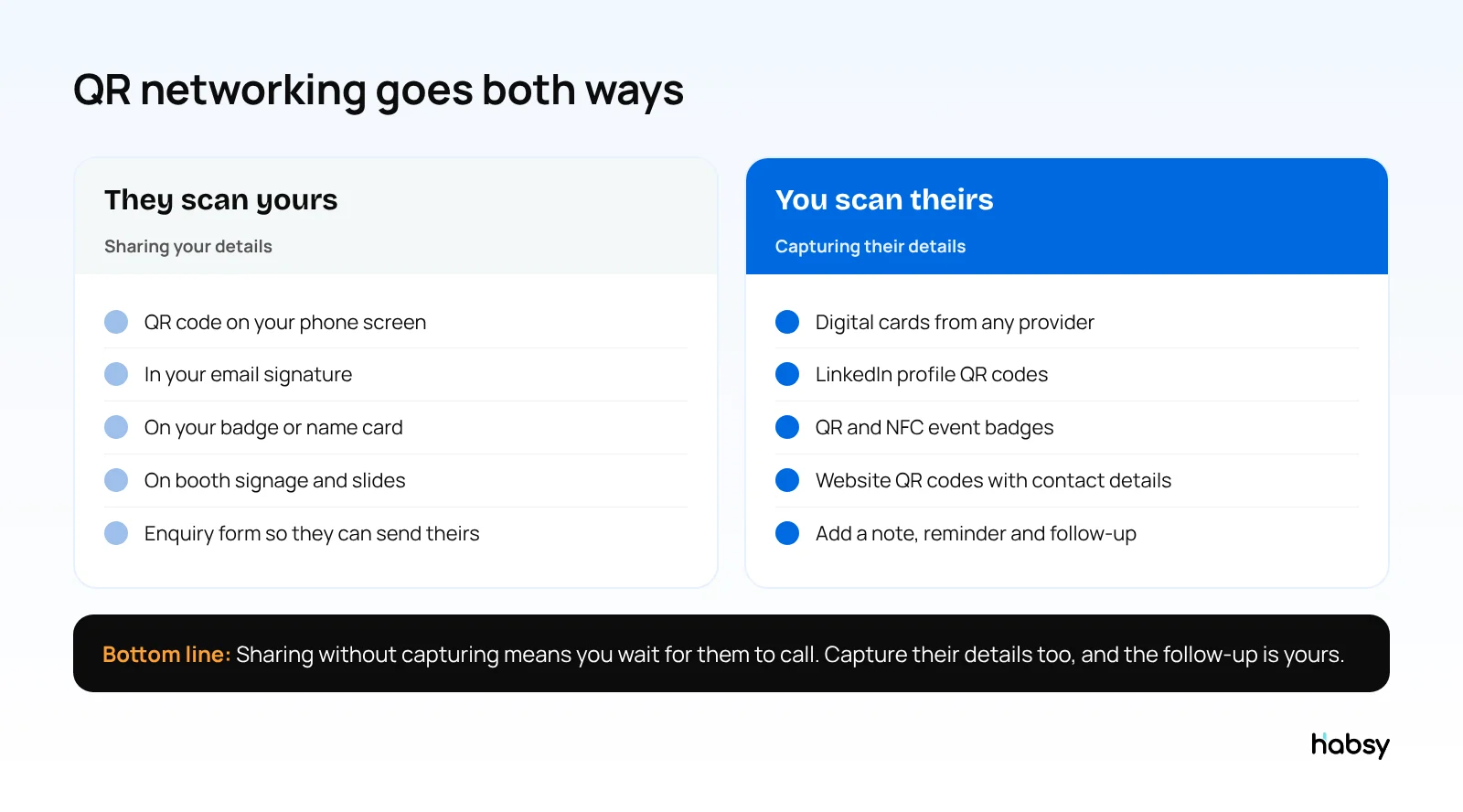
| Your phone, ready to show | The default for in-person meetings |
| Email signature | Every email becomes a chance to save you |
| Name badge or lanyard card | Visible all day at events |
| Booth signage and table tents | Visitors can scan while they wait |
| Presentation slides | The whole audience can save you at once |
| Video call background | Works for virtual events |
| Printed business card | Paper and digital in one |
Habsy’s email signature builder can place your Professional QR code in your signature.
Ask for their details back
Sharing your QR code gives them your details, but you still do not have theirs. With Habsy Plus, add an enquiry form to your card, so the person who scans it can send you their name, email and a message. Habsy lets you choose which fields are required, and new enquiries open as a contact list in the app.
Share and capture
Make every introduction easier to remember.
Create your digital card, scan the cards you receive and keep every new connection organized.
Part 2: Scanning other people’s QR codes
Many people now show a QR code instead of handing over a card. If you scan it with your phone camera, you usually get a web page, not a saved contact, and you have nowhere to keep notes.
Scan it in Habsy instead. Habsy reads:
- Digital business cards from any provider
- LinkedIn profile QR codes
- Website QR codes that carry contact information
- QR and NFC event badges
The person becomes a contact next to everyone else you met, where you can add a note, a reminder or, with Habsy Plus, a voice note and intent signals. When someone hands you a paper card instead, you scan that in the same app.
Three QR networking setups that work
1. The speaker. Put your Professional card’s QR code on your last slide with “Scan to save my contact” under it, and leave it up during questions. Afterwards, Habsy’s digital card analytics (with Habsy Plus) show how many people visited and saved your card from that session. Those who want to talk further can use your enquiry form.
2. The exhibitor. Print the QR code of your Business digital card on the stand, the table tent and the brochure rack. Attach your catalogue and price list to the card, so visitors take them on their phone. Set the enquiry form to ask for name, company, email and “What are you looking for?”, and make the first three required. At the same time, scan the badge or card of every visitor you speak to, so you capture both the people who scan you and the people you talk to.
3. The networker. At a meetup, show your QR code from your phone, and scan theirs back in Habsy. Add a one-line note to each contact before the next conversation. That night, use Send My Card for anyone who gave you only a paper card, and write the follow-ups with AI from a short prompt.
Illustrative example. After a two-day trade show, an exhibitor has two lists: 60 people who submitted the enquiry form from the stand QR code, and 140 contacts the team scanned during conversations, with notes and intent signals. The team starts with the people who appear on both lists: they scanned the stand code and also spoke to someone, which usually makes them the warmest leads.
Tips that make QR networking work
- Make it big enough. On print, a common guideline is at least 2 cm by 2 cm (about 0.8 inches), with a clear border.
- Keep contrast high. Dark code on a light background scans best.
- Add a call to action. “Scan to save my contact” tells people what will happen.
- Test before you print. Scan the proof with an iPhone and an Android phone.
- Use a link that never changes. Point to a digital card you can edit, not a static file.
- Follow up the same day. A saved contact is only the start. Send a short message while the conversation is fresh. Habsy writes a personal email or WhatsApp message with AI from a short prompt.
Measuring your QR code
With Habsy Plus, digital card analytics show visits, unique visitors, contacts saved, notes received and taps on each button, such as email, phone, LinkedIn and WhatsApp. Analytics show counts only. Visitors are identified only if they submit your enquiry form.
Bottom line
QR codes make networking faster, but only if you use them in both directions. Share a digital card people can save in one tap, and scan their codes into an app where you can follow up. Habsy does both, free. Create your digital card.
Frequently Asked Questions
How do I use a QR code for networking?
Create a digital business card that has its own QR code, keep it ready on your phone and in your email signature, and let people scan it to save your details. When someone shows you their QR code, scan it into a contact app so you keep their details and can follow up.
What should my networking QR code link to?
A digital business card page. It opens in any browser, shows your details and links, and lets the other person save you with one tap. Because the page can be edited, your QR code stays the same when your details change.
Can I scan someone’s LinkedIn QR code into my contacts?
Yes, with Habsy. It reads LinkedIn profile QR codes, digital business card QR codes from any provider, and website QR codes that carry contact information.
How big should a QR code be on a business card?
A common guideline is at least 2 cm by 2 cm (about 0.8 inches) with a quiet border around it and strong contrast. Always test-scan the printed proof with a few phones.
Can I see who scanned my QR code?
Habsy’s digital card analytics show counts such as visits, unique visitors, contacts saved and button taps. They do not show who the visitors are. A visitor is identified only if they choose to submit your enquiry form.
Share and capture
Make every introduction easier to remember.
Create your digital card, scan the cards you receive and keep every new connection organized.